Questions and Messages on the Job Board
How It Works
Every job on the job board has two ways to talk about it:
- Questions are public. Any business that sees the job reads them and the poster’s answers, so one answer helps everyone.
- Messages are private, between the business that posted the job and one other business. Only your two companies read them.
Owners and managers write questions, answers and messages. Crew leads and crew members don’t see the job board.
Why Contact Details Wait
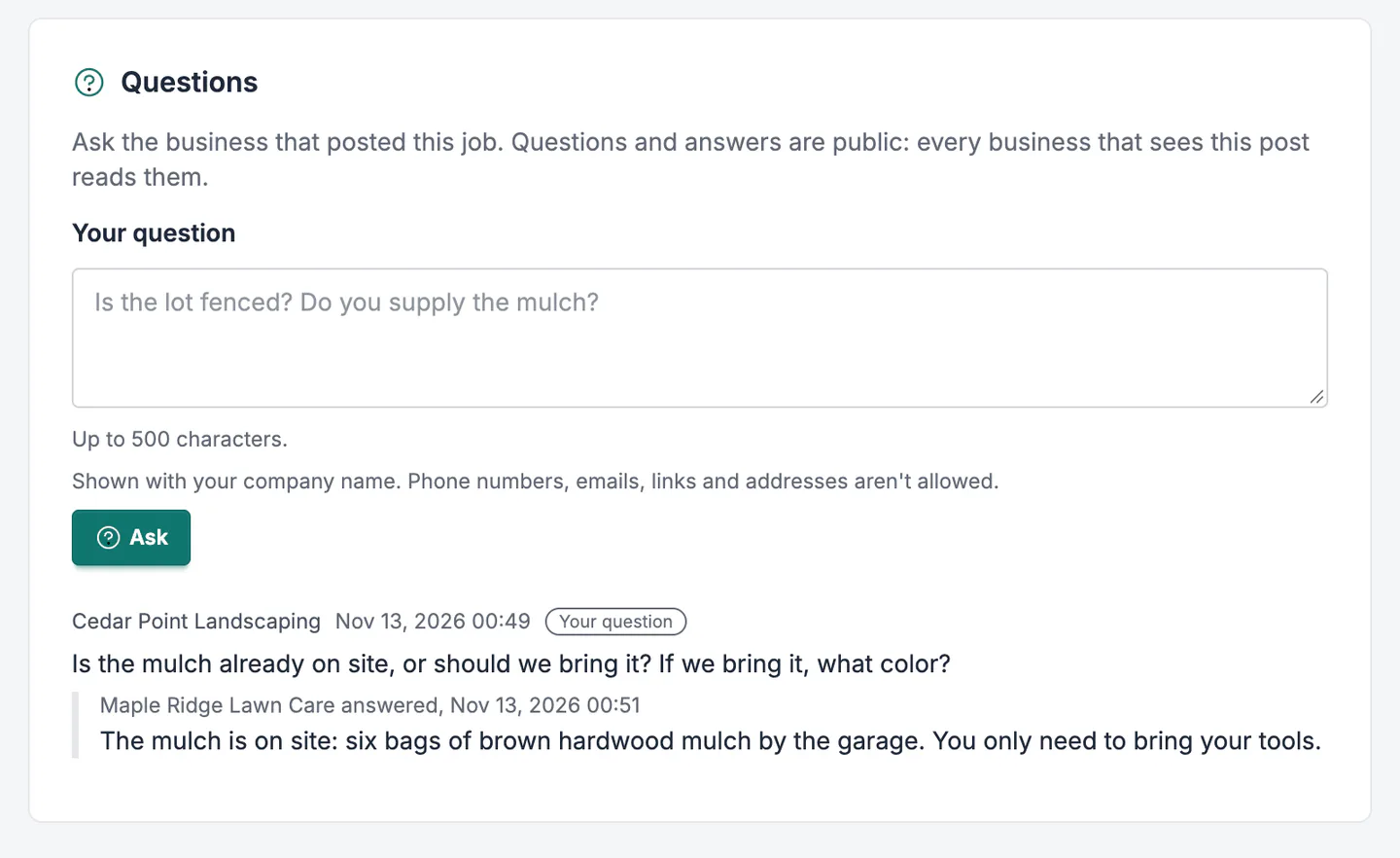
Questions, answers and messages can’t carry phone numbers, emails, links or street addresses. If yours has one, it isn’t sent: the reason shows above the box and the part that was found is marked under it, so you can take it out.
This keeps the deal on Jeero until the poster picks a business. Once the poster picks your business for the job, your private conversation with the poster opens up: either side can share phone numbers, emails, links and addresses there. Every other conversation about that job stays protected.
When you posted the job, your answers and your messages are also checked for your client’s name, contact details and street address, so they don’t reach the board by accident. The business you pick sees your client’s details after you choose it, as with any subcontracted job.
Ask a Question
- Open the job from Job board in the menu.
- Under Questions, write your question. Up to 500 characters.
- Click Ask.
Your question shows with your company name. Answered questions are listed first, newest answer first, then the ones still waiting. While a question has no answer, you can click Delete on it.
Answer Questions on Your Own Post
You hear about a new question in the app. To answer:
- Open your job, click Open offer on the Subcontract offer card, and find the question under Questions on the offer page. Or open the post from the notification.
- Under the question, write your answer and click Post answer. Up to 1,000 characters.
The business that asked hears about your first answer. To change it, click Edit answer, change the text and click Save answer.
To remove a question, and its answer, for everyone else, click Hide. You still see it greyed out, with Unhide to bring it back.
Write to the Business That Posted a Job
- Open the job on the board.
- Under Message the business, write your message (up to 2,000 characters) and click Send.
The conversation opens. Write more and click Send to add to it. New messages from the other business show up on their own while the conversation is open. You have one conversation per job; opening the job again offers Open the conversation.
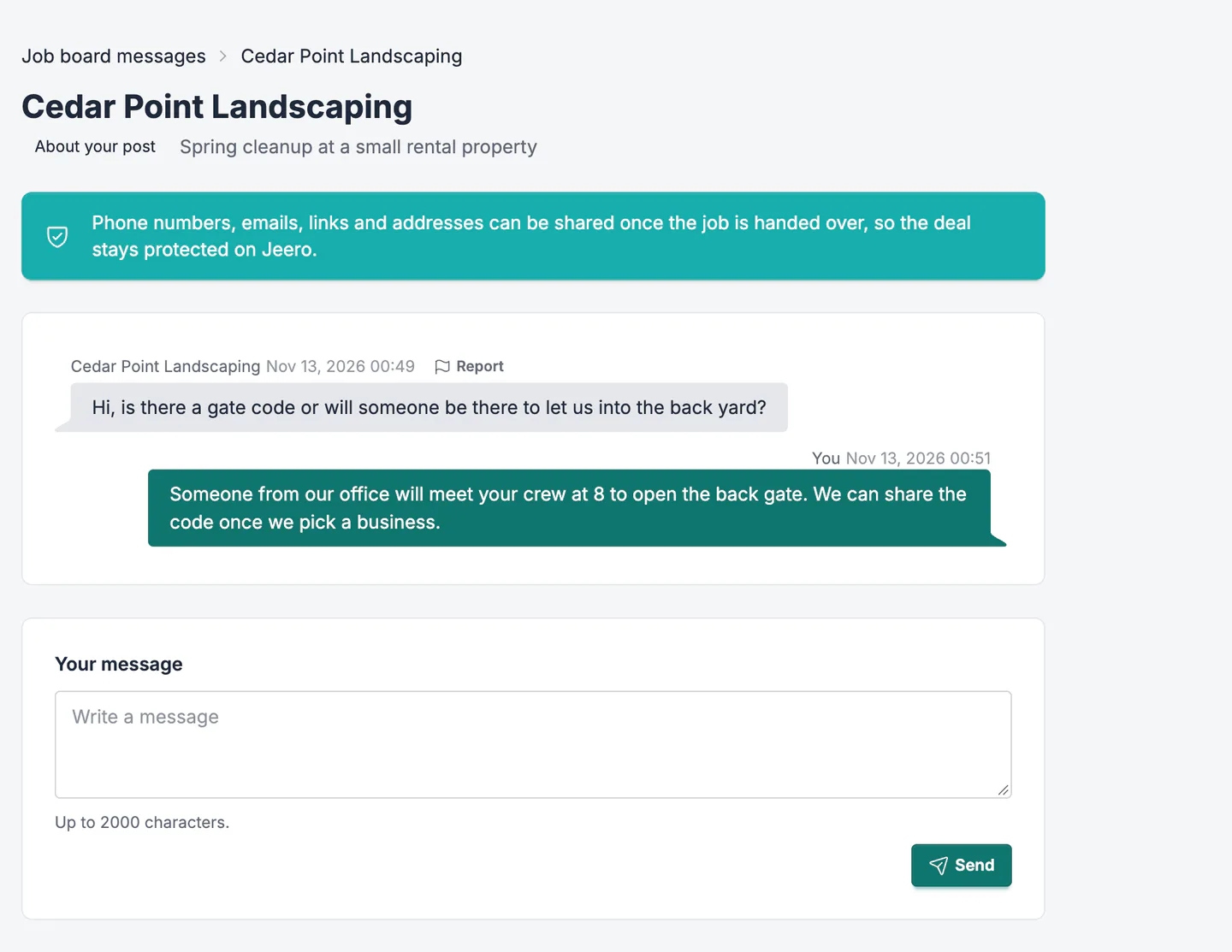
Conversations never close. You can keep writing after the job is taken, canceled or no longer on the board, and after your trial or plan runs out (starting a new conversation or asking a question needs one). If the other business closes its Jeero account, you keep the conversation to read; it shows them as a closed account and takes no new messages.
Your Inbox
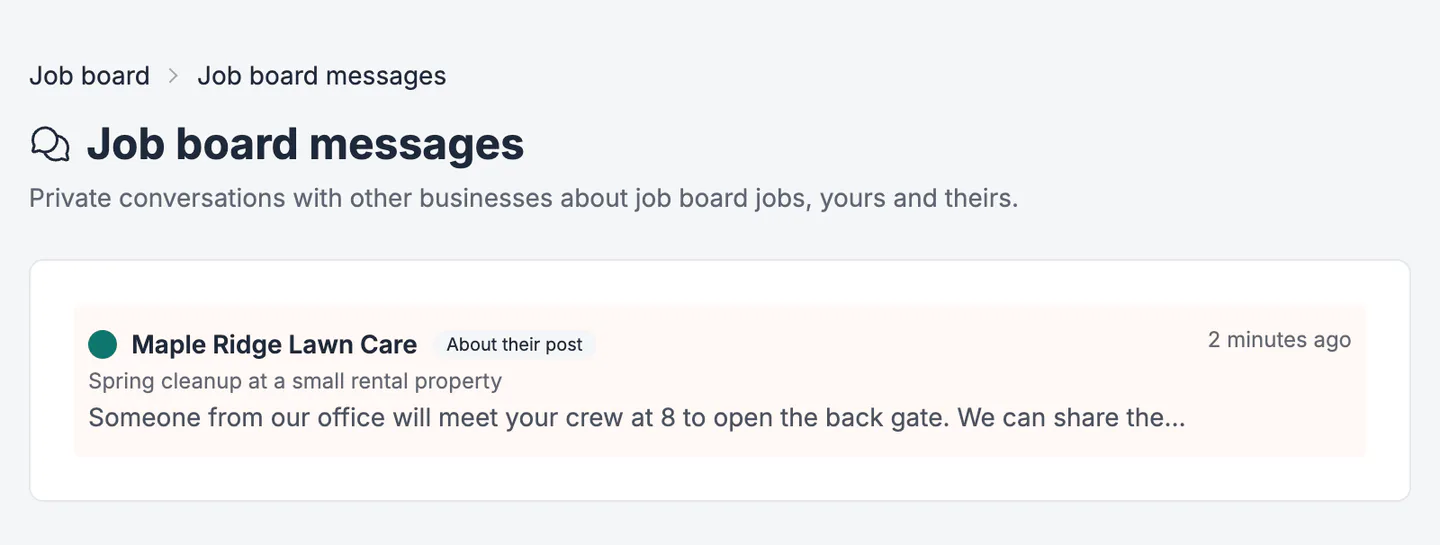
Click Job board in the menu, then Job board messages. Every conversation is listed, newest first: the other business, the job it is about, the last message and when. About your post marks a conversation on a job you posted; About their post, one on a job you wrote about. A dot marks a conversation with messages you haven’t read, and the Job board menu entry shows how many.
On a job you posted, the offer page (Open offer on the Subcontract offer card) and your post also list its newest conversations, and the card says how many are unread.
Notifications
- A new question on your post, and an answer to your question, reach you in the app.
- A new message reaches you in the app every time. To keep a busy conversation from flooding you, you get at most one push every 5 minutes and one email every 15 minutes for the same conversation. The email names who wrote and links to the conversation; read and reply on Jeero.
Turn each one on or off in your notification settings: on the web, open My account and click Manage notifications, then find them under Job board. See Notifications.
In the App
Owners and managers do all of this in the app too:
- Questions: open More > Job board and tap a job. Under Questions, tap Ask a question, write it and tap Ask. On your own question, tap Delete while it has no answer.
- Answering on your own post: open the post from the question notification, or open your job and tap N questions waiting for an answer on the Subcontract offer card. Tap Answer (or Edit answer) under the question, write and tap Post answer (or Save answer). Tap Hide or Unhide to take a question off the board or bring it back.
- Messages: on a job on the board, tap Message the business, write and tap Send; the conversation opens. Once you have one, the job shows Open the conversation. In a conversation, type in the box at the bottom and tap the send button. If a message is refused, the reason shows above the box and the part that was found is marked, with your text kept so you can fix it. New messages show up on their own while the conversation is open.
- Inbox: open More > Job board messages, or Job board messages at the top of More > Job board. Both show how many conversations have unread messages, and the More tab shows a dot. On a job you posted, the offer’s own screen lists its newest conversations.
Tapping a message notification opens the conversation; tapping a question notification opens the post. Turn these notifications on or off under More > Notification preferences, Job board.