Find Jobs Near You and Get Alerts
How It Works
The job board can show only the jobs that suit you: close to your company address or one of your places, of the types of work you do, on the days you’re free, and paying what you need. You can see them as a list or on a map, and set up alerts so you hear about a new job as soon as it’s posted.
Owners and managers use the filters and set up alerts. Crew leads and crew members don’t see the job board.
Filter the Board
- Click Job board in the menu.
- Use the filters at the top. Each one is optional, and they work together:
- Near: your Company address, one of your places, or Anywhere. The board starts with your company address.
- Within: 10, 25, 50 or 100 miles. The board starts at 50 miles.
- Type of work: pick one or more, or leave All types of work.
- Visits from and Visits until: shows jobs with a visit on or between those days.
- Minimum pay: leaves out jobs that pay less, or don’t list a pay.
- Sort by: Newest, Nearest, Highest pay or Soonest date first. Highest pay puts jobs paid in your currency first, from the most to the least, then the rest. Soonest date puts the job with the next visit first.
- Click Clear filters to start over.
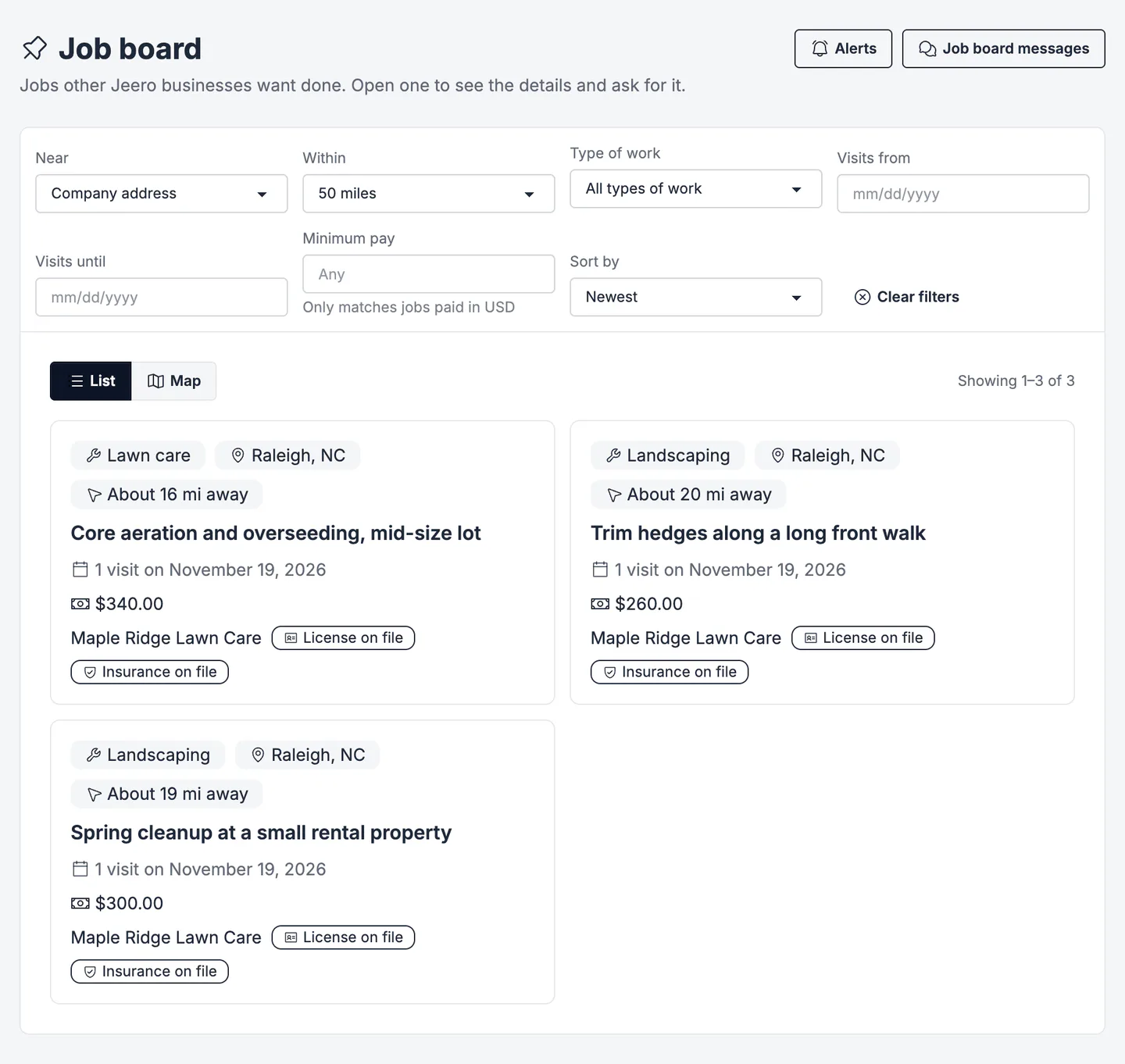
Each job on the board shows about how far it is, in whole miles. The distance is measured to the job’s circle on the map, not its address, so it can be off by up to a mile.
If your company address isn’t set or can’t be found on the map, and you have no places, Near and Within are off. Add your address on your company profile or add a place under My company > Places, and they turn on.
See Jobs on a Map
Click Map above the list to see the same jobs on a map; click List to go back. Jeero remembers your choice on that browser.
Each job is a circle reaching about a mile out from a spot near the job, never centered on the job itself. The exact address is shared only with the business that gets the job. Click a circle to see the job’s title, type of work, pay, visits and distance, then Open job to open it.
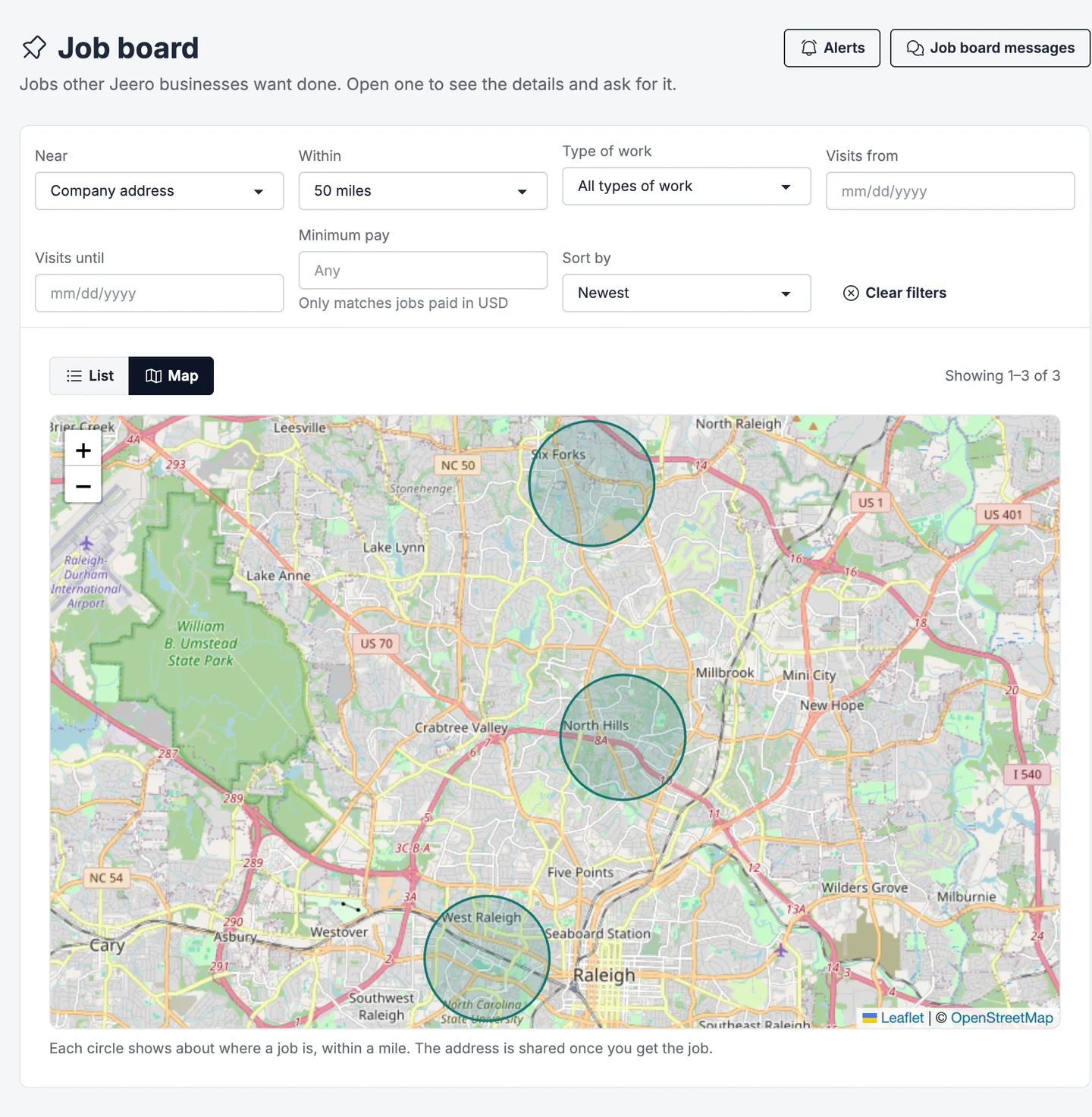
The map shows up to 200 jobs: the closest first, or the newest when Near is Anywhere. If more match, it says so: zoom in, or narrow the filters.
Each job’s own page shows its circle on a small map too.
Get Alerts for New Jobs
- On the job board, click Alerts.
- Click Add alert.
- Pick where to measure from (Near: your company address or one of your places), how far (Within), the Types of work (pick none to hear about every type), and a Minimum pay if you want one.
- Click Add alert.
When a new job matches, every owner and manager hears about it in the app, by push notification and by email, unless they turned that notification off in their notification settings. You hear about a job once, even if several of your alerts match it.
Alerts go out during your daytime (8 AM to 9 PM in your company’s time zone). A job posted at night reaches you the next morning, if it’s still open. Your company gets at most 10 alerts a day.
Your company can have up to 5 alerts.
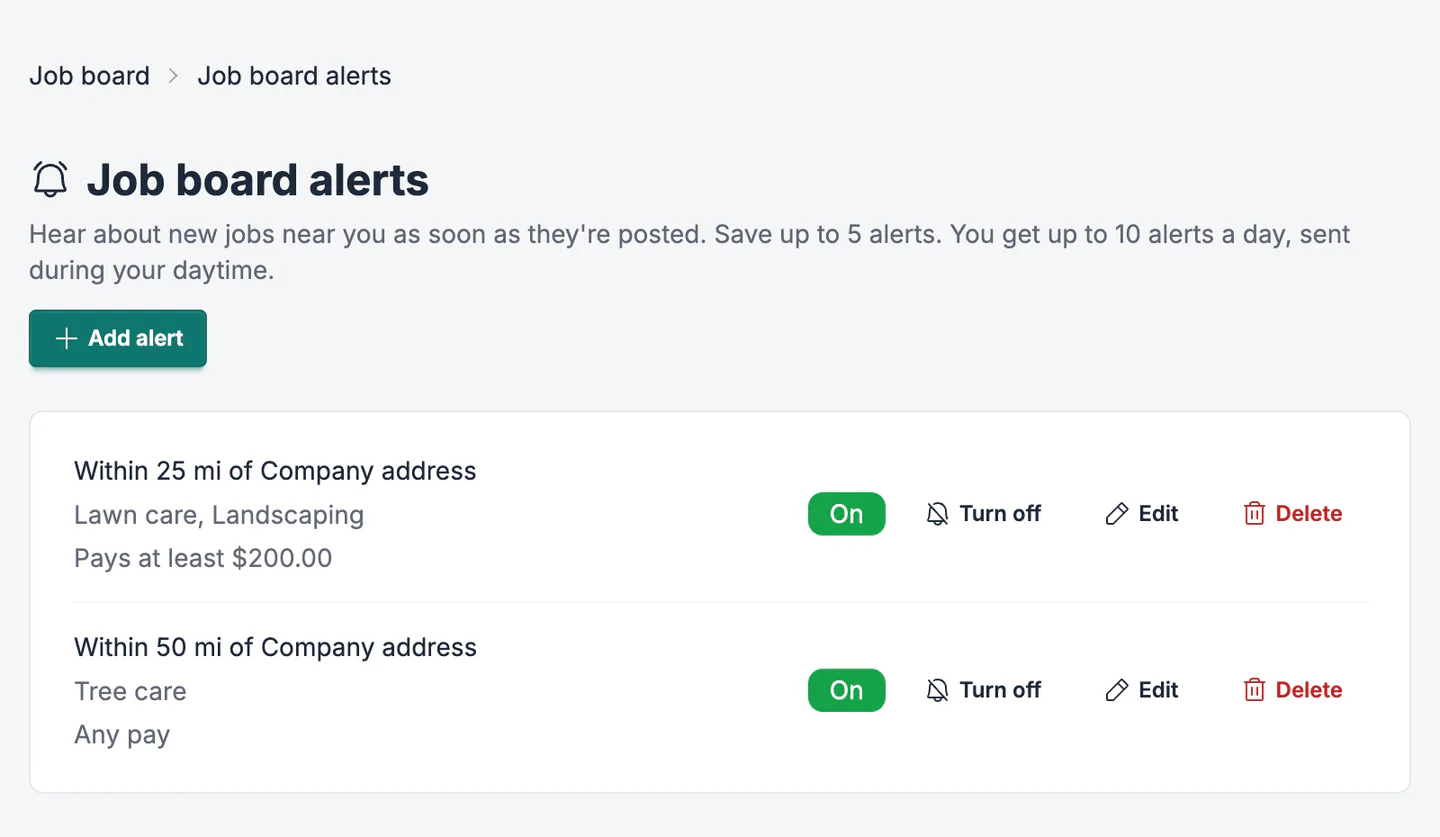
To change one, click Edit. To pause one, click Turn off, and Turn on to start it again. To remove one, click Delete.
Turn Off an Alert From Its Email
Every alert email has a Turn off this alert link. It opens a page where you confirm, without signing in, and turns off only the alert that sent that email. Alert settings in the email opens your alerts.
In the App
Owners and managers can do all of this in the app too. Open More > Job board.
Filter the Board
- Tap Filters above the list.
- Pick what you want. Each one is optional, and they work together:
- Near: Company address, one of your places, or Anywhere. The board starts with your company address.
- Within: 10, 25, 50 or 100 miles. The board starts at 50 miles.
- Type of work: tap one or more. Tap none to see every type of work.
- Visits from and Visits until: tap each to pick a day from the calendar. Tap Clear under a day to remove it.
- Minimum pay: type an amount, or leave it empty for any pay.
- Sort by: Newest, Nearest, Highest pay or Soonest date.
- Tap Apply.
The line under the buttons says what the board shows, like “Within 50 mi of Company address”. Filters shows how many filters are on. To start over, tap Filters, then Clear filters and Apply. When no job matches, tap Clear filters under the message.
Each job shows about how far it is, like “About 6 mi away”.
If your company address isn’t set and you have no places, the app says so instead of showing Near. Add your address or a place on the web, under My company.
See Jobs on a Map
Tap Map above the list to see the same jobs as circles on a map; tap List to go back. Tap a circle to see the job’s title, type of work, visits, pay and distance below the map, then tap Open job.
Each job’s page shows its circle on a small map under the job’s details.
Manage Alerts
- On the job board, tap Job board alerts.
- Tap Add alert.
- Pick Near, Within, the Types of work (none for every type) and a Minimum pay if you want one.
- Tap Add alert.
Each alert shows where it looks, its types of work and its pay. Use the switch next to an alert to turn it off or on. Tap Edit to change it (the form also has an Alert is on switch), or Delete to remove it, then confirm.
To choose how you hear about new jobs, open More > Notification preferences and find A new job board job matches your alert under Job board. Tapping the notification opens the job.