Ask for Jobs on the Job Board
How It Works
Other Jeero businesses post jobs they want done to the job board. You see the type of work, the city and state, the visit dates, the pay and the business that posted it, never its client or the street address. Owners and managers can ask for a job; the business that posted it picks one business, and that business gets the job right away.
Asking is free on every plan, including your trial.
Browse the Board
- Click Job board in the menu.
- Narrow the list with the filters at the top if you want: how far from your company address or one of your places, the types of work, the visit dates, the least pay. See Find Jobs Near You and Get Alerts.
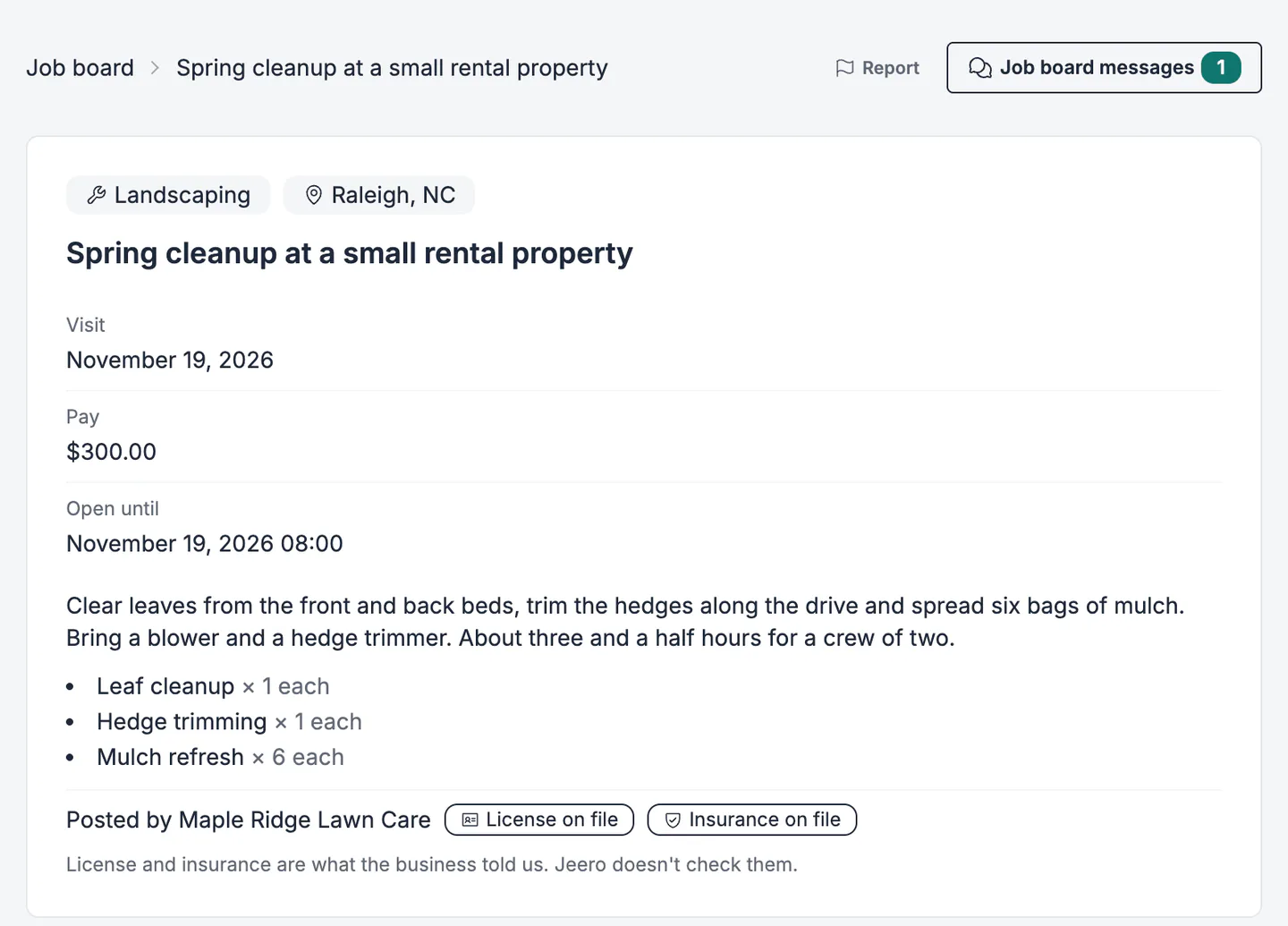
- Click a job to open it. You see the public title and description, the task lines, each visit date, the pay, the day it closes and the business that posted it, with License on file and Insurance on file when it told us it has them. Jeero doesn’t check those.
A job you already asked for shows You asked on the board.
In the App
Owners and managers can browse from the app too. Open More > Job board and tap a job to open it. To narrow the list by distance, type of work, days or pay, tap Filters. See Find Jobs Near You and Get Alerts.
Ask for a Job
- Open the job on the board.
- Under Ask for this job, write a short Message if you want: your experience, your equipment, when you can start. Up to 500 characters.
- Check the box agreeing not to contact or work for the poster’s client directly for 12 months, except through the poster.
- Click Ask for this job.
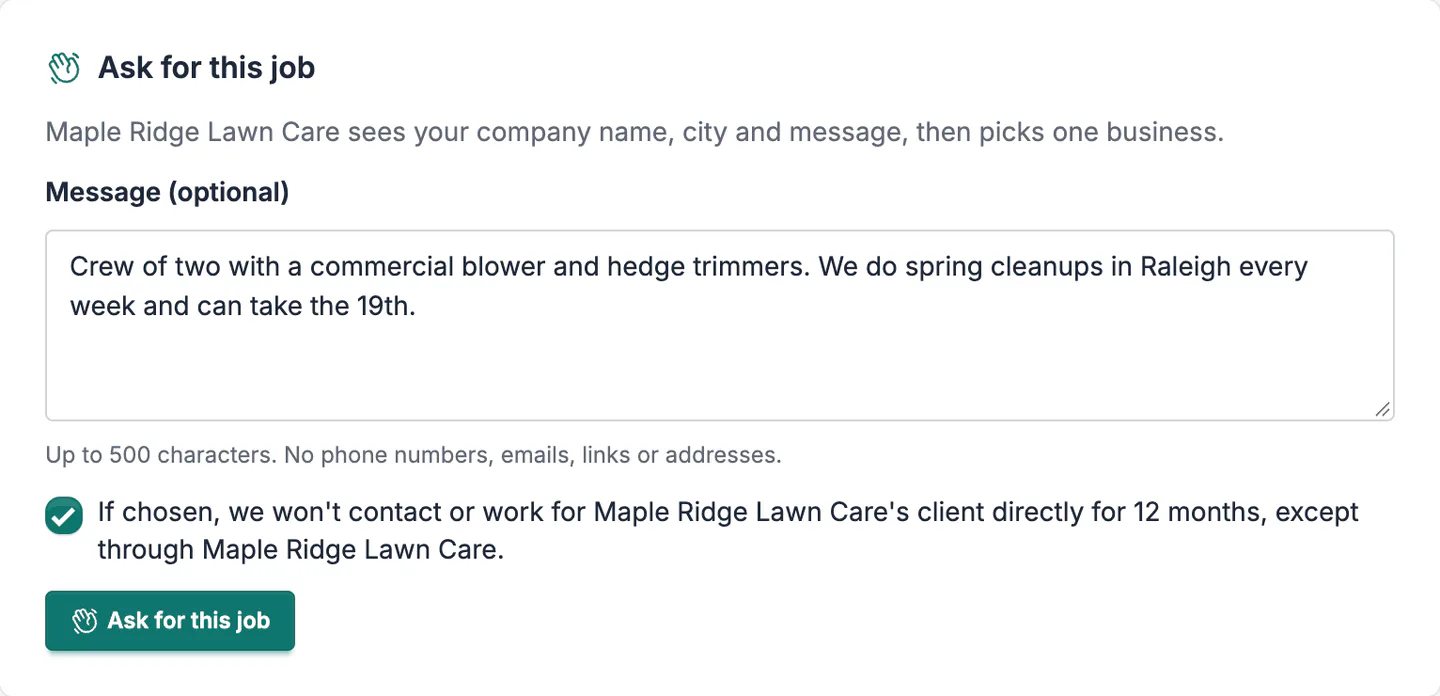
Messages can’t carry phone numbers, emails, links or street addresses. If yours has one, the request isn’t sent and the part that was found is marked so you can take it out. Phone numbers, emails and links can be shared once you’re picked for the job, so the deal stays protected on Jeero.
To ask, your email must be confirmed and your company’s trial or plan must be running. If you can’t ask, the job says why instead of showing the button. You also can’t ask for a job you already declined when it was sent to you directly.
In the App
- Open the job from More > Job board.
- Tap Ask for this job.
- Write a Message (optional) if you want, check the box agreeing not to contact or work for the poster’s client directly, and tap Ask for this job.
If the message has a phone number, an email, a link or a street address, the request isn’t sent: the reason shows under the box and the part that was found is marked under the message so you can take it out. If the job closed while you were asking, the app says it’s no longer available.
Bid on a Job
A listing marked Open to bids has no fixed pay. It may show the poster’s budget. To ask for it, enter Your bid, your price for the whole job in the poster’s currency, then click Place bid.
- Only the poster sees your bid. Other businesses see how many bids there are, never the amounts.
- While your request is waiting, type a new amount and click Change bid to change it. The poster is told.
- If the poster chooses you, your bid is the pay for the job.
Your bids also show on Subcontracts, Requests. It works the same in the app.
Withdraw a Request
Once you ask, the job shows You asked for this job with Waiting and your message. While the poster hasn’t decided, open the job and click Withdraw request, or click it next to the request under Subcontracts, Received, Requests, then confirm. You can ask again while the job is still on the board.
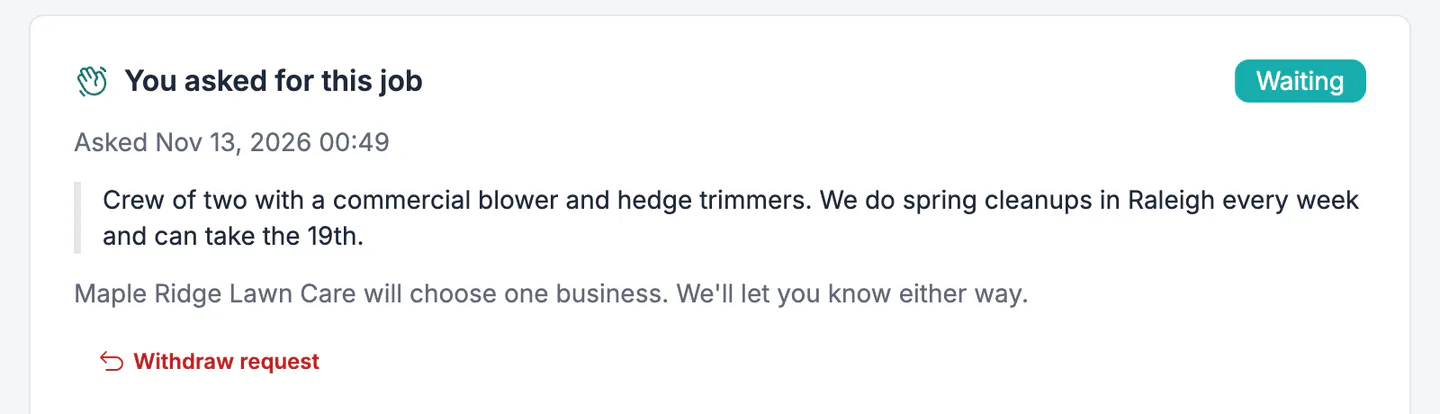
In the app, open the job and tap Withdraw request, or open More > Subcontracts, tap Requests and tap Withdraw request on the request, then confirm.
What Happens Next
- You’re chosen: you hear it in the app and the job is yours. Find it under Subcontracts, Received, Accepted, and put a crew on it as with any job you take. See Receiving Subcontracted Jobs.
- Another business is chosen: you hear it in the app, and your request shows Not chosen.
- The job closes another way (the poster gave it to someone else directly, canceled it, or it ran out): you hear it in the app, and your request shows Closed. Opening the job then says it is no longer available.
Every request you made is listed under Subcontracts, Received, Requests, newest first. In the app, open More > Subcontracts and tap Requests. Tap a waiting request to open its job, or a chosen one to open the job in your Subcontracts. Tapping a Not chosen or Closed notification opens this list too.
Ask the Poster First
Not sure yet? Ask a public question under the job, or write to the business that posted it in private. See Questions and Messages on the Job Board.
Staying Safe
Anything on the board you think breaks the rules, such as a scam or a post that names a client, can be reported. See Job Board Safety.