Scheduling
The Schedule View
Schedule in the sidebar is a calendar of every crew’s visits. The buttons at the top right switch between Day (a column per crew), Board (a timeline with a row per crew), Week, and Month; the arrows and Today move through dates. It opens on the Board and remembers the view you used last.
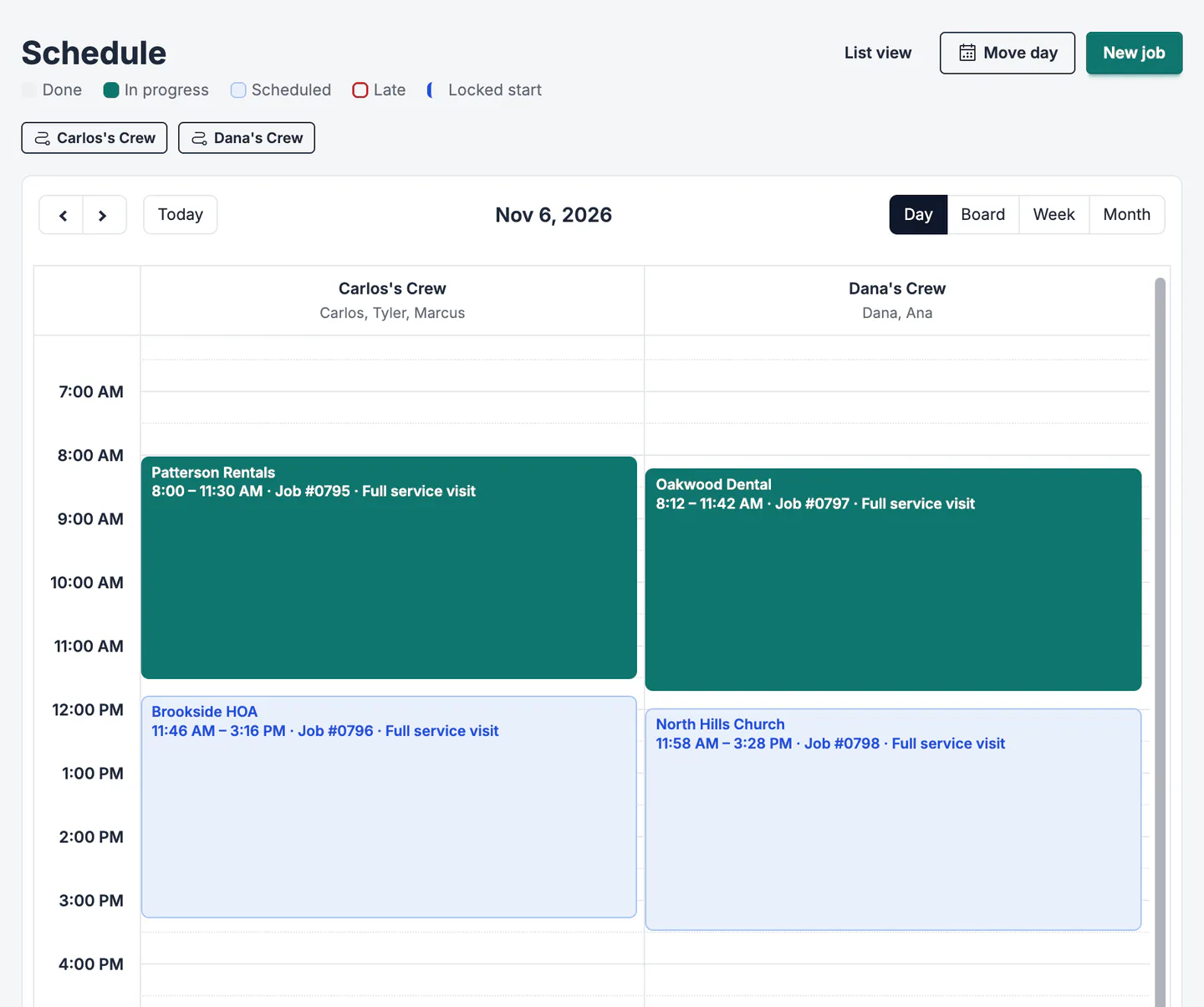
Each visit is colored by state – Done, In progress, Scheduled, Late – and a visit with a locked start time has a thick left edge. Canceled jobs are not shown; skipped visits stay, grayed out. Click a visit to open the job, or drag it to another day or crew (see Dragging a Visit). In Week and Month, today is tinted and its day number is circled.
At the top right, List view opens the jobs list, New job creates one, and Move day moves every visit on a day at once (see Move a Whole Day), and Merge day puts two crews together for a day (see Merge Two Crews for a Day).
Above the calendar, the Show row has one button per crew. Click a crew to hide it and its visits in every view; click again to bring it back, or All crews to show everyone. The choice is remembered in your browser. The Routes row below it opens each crew’s route for the day.
Below the calendar are two lists, eight jobs each with an All link to the rest: Unscheduled, jobs waiting for a date or a crew, oldest first, each tagged Needs a date or Needs a crew, and Late, jobs whose last visit date passed without being completed.
On a phone-sized screen the calendar becomes a weekly list, one card per day. The management mobile app has the same work on its Schedule tab – see Mobile Management App.
How Scheduling Works
A job is scheduled by giving it a Crew and at least one date under Scheduled dates, when you create it or later with Edit.
A job’s first date moves it from Unscheduled to Scheduled automatically. Remove every date from a Scheduled job and it returns to Unscheduled.
Dragging a Visit
Drag a visit on the calendar to move it. Where you can drop it depends on the view:
- Board and Day show one day with a row or column per crew, so a drag there changes the crew.
- Week and Month show the days, so a drag there changes the day.
Dropping opens the Move visit dialog with the Day and Crew filled in from where you dropped, so you can change either from any view, or fix a drop that landed one day off. Nothing moves until you click Move; Cancel puts the visit back.
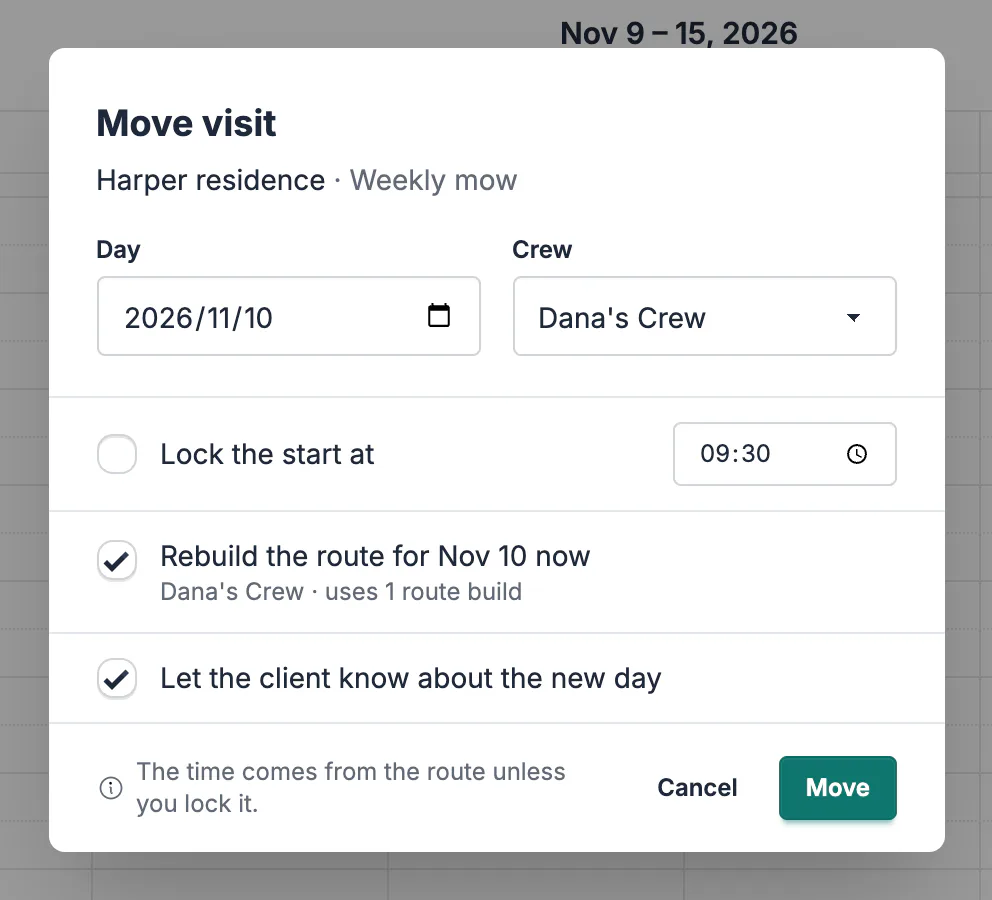
The dialog also offers, when they apply:
- Lock the start at – The hour you dropped on, to the nearest quarter hour. It’s off by default, because the time of day otherwise comes from the route (see How the Schedule Works With Route Building). Tick it to make that hour a locked start time, the same as Lock start time on the job. A visit that already has a locked time arrives with the box ticked; untick it to let the visit float again. Dropping a visit on another hour of the same day opens the dialog with the box ticked, since the hour is the only thing that changed. The Month view has no hours, so it has no lock row.
- Rebuild the route for … now – Only when the crew’s route for that day is already built. It’s on by default and uses one route build from your routing budget. A hand-ordered route keeps its order and takes the new stop at the end. Untick it if you’re making several moves and would rather rebuild once at the end. If the rebuild can’t run, for instance because the budget is used up, the visit still moves and a message says why the route wasn’t rebuilt.
- Let the client know about the new day – On by default when the day changed. The client gets the usual Job rescheduled message by email, text or both. The crew is always told.
A few rules:
- Only Scheduled or under-way visits can be dragged. Done, late, skipped and canceled visits stay where they are.
- Changing the crew moves only this visit to the new crew. For a visit of a recurring job, applying changes from the original job later won’t put it back.
- Moving a visit of a project moves only that visit; the other visits stay. See Projects.
- Moving a visit of a recurring job can shift the later visits of the series, exactly as Reschedule does. See When a Recurring Visit Moves.
- Unless you ask for a rebuild, the routes of the day the visit left and the day it landed on are marked Stale. See Route Optimization.
Each move adds a Rescheduled entry to the job’s Status history.
Rescheduling
Open a job that is scheduled or under way and click Reschedule, then pick the New date. A crew lead can reschedule their own crew’s jobs too. On the web, owners and managers can also drag the visit on the Schedule (see Dragging a Visit).
Adding, changing, or removing a date on a job that is scheduled or under way notifies the crew, and the client if you have those messages turned on (see Client Notifications).
If a visit cannot happen and you don’t know the new date yet, skip it instead. See Skipping a Visit.
Locked Start Times
Jobs have no fixed time by default; the route decides the order of the day. When a client expects you at a specific time, set Lock start time (optional) on the job, or drag the visit to that hour on the Schedule and tick Lock the start at (see Dragging a Visit). Route optimization plans the rest of the day around it – see Route Optimization.
A locked job shows a lock icon with its time on the dashboard’s crew cards and in the crew’s own schedule.
Recurring Jobs
For work that repeats, tick Recurring job when creating or editing a job, or click Make recurring on the job’s page. Set:
- Frequency – Daily, Weekly, Biweekly, or Monthly.
- Days of week – for weekly and biweekly jobs.
- Ends – Never, On a specific date, or After a number of occurrences.
- When a visit is moved or skipped – whether later visits follow or keep their usual day. See When a Recurring Visit Moves.
Jeero creates the occurrences for the next two months and keeps extending them. Each is a normal job, already scheduled with the same crew, line items, and locked start time, that you can edit or reschedule on its own. Clients are not messaged when occurrences are created.
To push changes made to the original job out to the series, click Edit on its Recurring job card and tick Apply changes to future unmodified instances. Only future occurrences that have not started and that you have not edited individually are updated.
Remove on the same card ends the series: untouched occurrences are deleted, and ones you edited stay as standalone jobs.
Crew Schedule on the Dashboard
The dashboard’s Crew schedule has a card per crew listing the day’s jobs in order, each with its name, client, address, status, and times. See Dashboard.
How the Schedule Works With Route Building
The schedule decides who does a job and on which day; the route decides the order.
- Once a crew’s route is built for a day, its visits show the route’s estimated arrival and departure times.
- Until then, a locked job sits at its locked time and the rest are stacked one after another from your company’s Default job start time (see Default Start Time).
- Dragging a visit on the calendar changes its day or crew, never its time of day: the order of the day still comes from the route. Reordering stops and optimizing happen in the route view. See Route Optimization.
What Crews See
Crew leads and crew members have My schedule: a month calendar of their crew’s past and upcoming visits, with the estimated start and end of each. It shows no prices and cannot change anything. See Worker App – The Schedule Tab.