Jobs
What Is a Job?
A job is one piece of work for a client at a property. It holds the crew, the visit dates, the estimated duration, the line items, and the current status.
Every job has its own number, such as #0042. The Jobs list leads with it, a click anywhere on a row opens the job, and the search box takes a job number or a client name.
Creating a Job
Owners and managers click New job on the dashboard or the Jobs page and fill in:
- Client – Search for an existing client, or use the plus button to create one on the spot.
- Property – One of the client’s service locations. You can add a new one here too.
- Crew – Who does the work. If you have only one active crew, it is picked for you.
- Priority – Normal, High, or VIP.
- Scheduled dates – One or more visit dates. Leave empty to keep the job unscheduled.
- Estimated duration – Pick the hours and minutes (in 5-minute steps). Used for route planning and overage tracking.
- Lock start time (optional) – A fixed time the visit must start at.
- Invoice mode – See Creating an Invoice from a Job.
- Notes – Instructions for the crew.
- Recurring job – See Recurring Jobs.
Line items are added on the job page after you save. See Line Items.
Job Statuses and Lifecycle
- Unscheduled – No visit date yet.
- Scheduled – The job has a visit date.
- En route – The crew is on its way.
- In progress – Work is underway.
- Paused – Work is paused. The crew can resume or complete the job from here.
- Completed – The job is finished.
- Canceled – The work is not going to happen. See Canceling a Job.
- Skipped – The visit could not happen this time and is still open work. See Skipping a Visit.
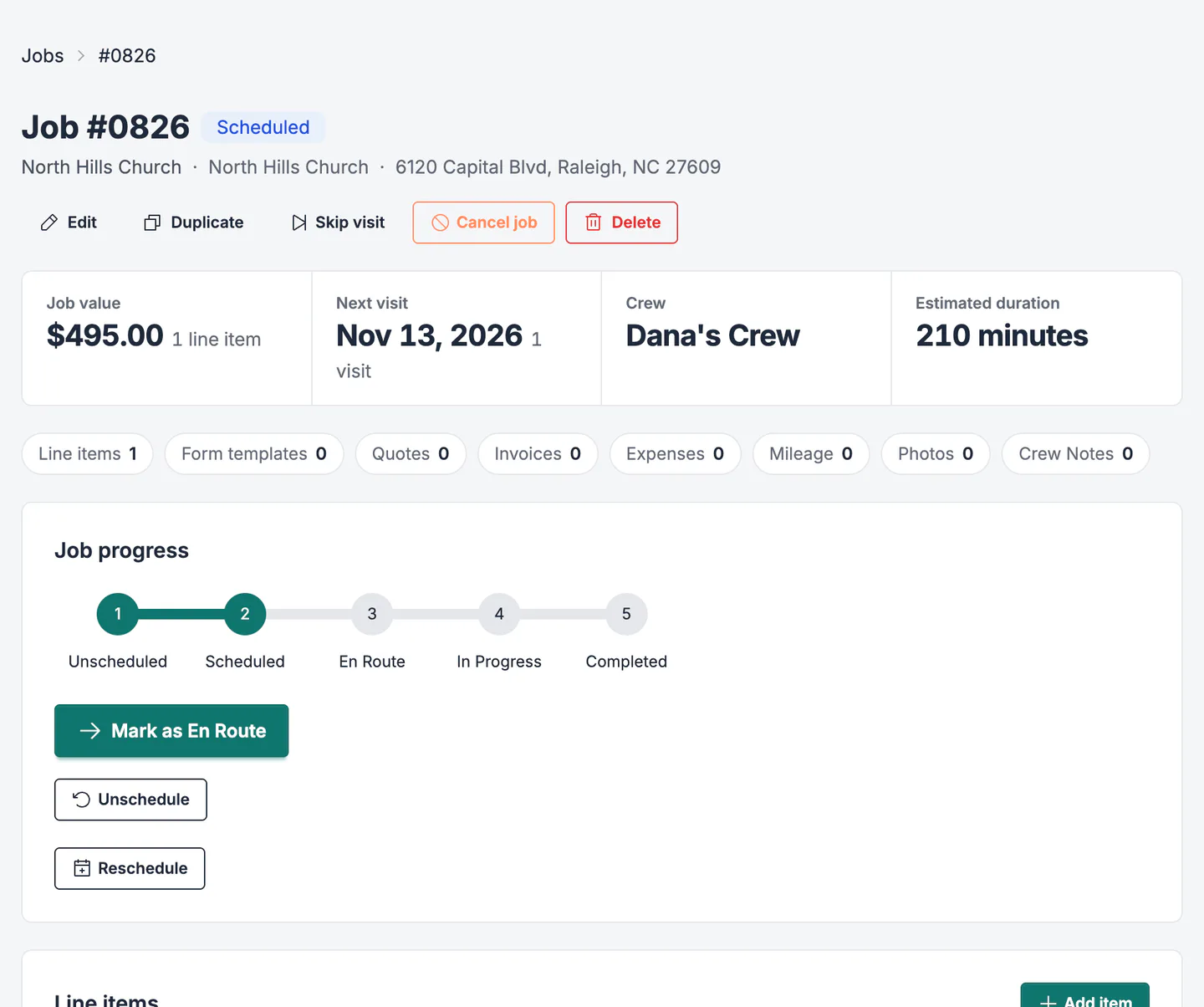
A job needs a visit date to become Scheduled, and a crew before it can move to En route or In progress.
Crew leads move a job through its statuses in the mobile app or on their job page on the web. Owners and managers can do the same from the job page, or run jobs in the field themselves under My field work. Crew members can view their crew’s jobs but not change the status.
Changing a job’s status does not start or stop time tracking – see Timesheets.
Skipping a Visit
When a visit cannot happen today, skip it instead of deleting the date. Open the job and click Skip visit, pick the reason (Rain, Locked gate, Customer request, Crew short, or Other), and choose whether to let the client know. The crew is notified. A crew lead can skip from their own job page; the office is then notified, and the client is not contacted.
The job moves to Skipped and:
- it comes off the crew’s route, their schedule and the day’s lists
- it keeps its visit date, so you can see which day was missed and why
- it stays on your calendar, grayed out
- nothing is added to anyone’s hours
To put it back, pick a New date on the job page and click Reschedule – the suggested date is the crew’s next working day. The client and the crew are told once about the new date. If the visit is not going to happen at all, use Cancel job. Skipped visits are also listed under Needs attention > Skipped visits, where one click reschedules to the crew’s next working day, and under the Skipped filter on the Jobs page.
Only a job that is Scheduled or En route can be skipped.
Canceling a Job
When a job is not going to happen, cancel it rather than deleting it. An owner or manager opens the job, clicks Cancel job, gives a reason, and chooses whether to let the client know. Any job that is not completed can be canceled. It moves to Canceled and:
- It leaves the calendar, the crew’s day, every route and the Late visits list.
- Its visit dates, logged hours, receipts, photos and notes all stay on file.
- The assigned crew is notified that the job is off.
- The client gets their usual email or text, if you leave Let the client know ticked and they had already been told about a visit. You can turn this notice off for everyone under Client Notifications.
The reason and the date appear on the job, and the Canceled filter on the Jobs page lists every canceled job. Canceling one occurrence of a recurring job leaves the rest of the series alone.
Reopen job puts it back to Unscheduled with its visit dates kept.
A job with a sent or paid invoice can no longer be canceled or deleted. Otherwise Delete removes the job for good, together with its visits, hours, receipts and photos – use it only for jobs created by mistake.
Editing and Duplicating Jobs
Owners and managers can Edit a job at any time to change its details, crew, or dates. Changing the dates of a job that is already scheduled sends the client a notification. To move a single visit, use Reschedule on the job page; crew leads can do this too, and the office is notified.
Duplicate creates a new Unscheduled job with the same details and line items, and no visit dates.
Setting Priority
A job is Normal, High, or VIP. High and VIP show as a badge on the job, and the Jobs page can be filtered by it.
Jobs you offered to other businesses show an Offered, Subcontracted to or Done by badge on the Jobs page, and the Subcontracting filter lists them. See Subcontract a Job.
The Needs Attention Page
Needs attention in the sidebar lists the jobs that require a decision: late visits, open jobs with no crew or no date, and skipped visits. Its badge shows how many are waiting. See Dashboard.
Recurring Jobs
Tick Recurring job in the job form, or click Make recurring on an existing job, and choose:
- Frequency – Daily, Weekly, Biweekly, or Monthly. For Weekly and Biweekly you can pick the days of the week.
- Ends – Never, On a specific date, or After a number of occurrences.
- When a visit is moved or skipped – Whether later visits follow or keep their usual day. See When a Recurring Visit Moves.
Jeero generates the visits two months ahead. Each one is its own job, copied from the original with its line items, and can be edited without changing the rest of the series.
Edit on the job’s recurrence card changes the rule; tick Apply changes to future unmodified instances to push the original job’s details and line items to upcoming occurrences you have not edited. Remove deletes the rule and every occurrence you have not edited; edited occurrences stay as standalone jobs.
Projects (Jobs Over Several Visits)
A job has one date. For work that takes more than one visit, click Add visit on the job page, pick the date, the crew (the job’s crew to start with) and the forms the visit needs (all of the job’s forms are ticked). The job becomes a project with two visits; the dialog says so before you save. Creating a job with more than one date in the job form, using Add date, makes a project the same way: a note under the dates says so before you save, and the message after saving says how many visits the project has. The message after the first Add visit says the job is now a project and its price and invoice moved there.
When the job’s quote was estimated at more than a workday, the job form says how many days it takes the crew you picked. Add N more dates fills in the next weekdays and each visit’s share of the hours; change or remove any of them before saving.
- Each visit is a job of its own. It has its own crew, status, photos, forms, notes, hours and expenses, and the crew works it like any job: On my way, Start job, Finish job. Finishing a visit finishes that day’s work only.
- The price is on the project. The job’s line items move to the project when it is made, and visits have no price of their own. A visit’s page lists the project’s items as the work to do; Edit price on project and Invoice on project open the project, and the ? beside Line items and Invoices explains why.
- One invoice for the project. It holds the project’s items and every visit’s billable expenses, each labeled with its visit date. With Auto-send on completion it goes out when the last visit is finished. See Invoicing a project.
- The project page shows the client, the project value, the visits with their crew, status and photos, the price and the invoice. The Jobs list shows a project once, with an “N visits” badge.
- Visits work like any job. You can move one to another day or crew, skip it, merge its crew’s day, put it on a route or offer it to another business, and the rest of the project stays as it is.
- Moving a visit moves only that visit. Two visits can share a day, and Visit 2 of 3 follows the dates, so a visit moved past another changes number.
- Removing a visit: Remove on the project page takes off a visit nobody has worked yet. With one visit left the project turns back into a plain job and the price moves onto it.
- A crew lead can add a visit to their own crew’s job from the app or the crew pages. The visit goes to their crew and you are told.
- Recurring jobs, canceled jobs, jobs another business is doing, and work that already has an invoice can’t take another visit.
Line Items
Line items are the charges on a job. On the job page, click Add item and pick an entry from your catalog or type a description. Each item has a category, quantity, unit, cost (what it costs you), and price.
Categories are Service, Part, Expense, and Mileage.
The job page shows the total as Job value. Line items can be changed until the job is Completed, and they carry over when you create an invoice.
Under the line items, Discount takes an amount or a percent off the job’s price (a project’s discount is set on the project). A quote’s discount carries onto the job it becomes, and the job’s onto its invoice.
Required Forms and Photos
You can require steps that the crew must complete before they can start or finish a job.
- Forms – On the Pro and Business plans, attach a form template to a job from the job page. Each template is either Before start or After completion: the crew cannot start the job until the first kind is filled in, or finish it until the second kind is. A Before start form cannot be attached once work has begun. See Form Templates.
- Photos – Require before photos (pre-start) and Require after photos (pre-finish), under Photo requirements on My company > Scheduling & field work, are on by default: the crew needs at least one before photo to start every job and at least one after photo to finish it. Turn either off there. They apply on the Pro and Business plans and during your trial; on Starter the crew can start and finish without photos.
Before and After Photos
Crews can add before photos until they start the job, and after photos once it is in progress, paused, or completed. Owners and managers can upload and remove photos from the job page at any time.
Location-Verified Photos
On the Pro and Business plans, when Geofence enforcement is on under Photo geofence in My company > Scheduling & field work (it is by default), Jeero checks where each photo was taken against the job’s location. On the job page each photo shows when it was captured and one of:
- A map pin – Taken inside the radius. You can view the spot on a map or show its address.
- Outside geofence – Taken outside the radius.
- GPS disabled – The photo had no location.
- Not verified – Uploaded from the web, or the job’s address has no coordinates.
Flagged photos are never blocked; they are marked for review, and owners and managers are notified. You set the radius on the same page.
Creating an Invoice from a Job
Click Create invoice in the Invoices section of the job page. Jeero builds a draft invoice for the client with the job’s line items, which you can review before sending. If the job already has an invoice, Jeero asks before creating another.
The job’s Invoice mode decides what happens on completion: Auto-send on completion creates and sends the invoice as soon as the job is completed, Monthly batch puts the job on the client’s next monthly invoice, and Manual does nothing. Inherit from client uses the client’s billing settings. See Invoices and Payments.
Overage Tracking
When a job is marked Completed, Jeero compares the working time (pauses excluded) with the estimated duration. If it ran over, the job page shows a badge such as “+15 min over estimate”.
On the Business plan, two alerts go to owners and managers:
- Overage – A job in progress has run past its estimate plus the Overage buffer (minutes) set on My company > Alerts.
- Incomplete job – A job is still open past its expected finish time plus the Grace period (minutes) set on My company > Alerts.
Anything still open once its last visit date has passed moves to Late visits on the Needs attention page. See Dashboard – Late visits.
The Job Performance Page
Job performance, under Money in the sidebar on the Business plan, summarizes overage for the last 30, 60 or 90 days or 12 months:
- Over estimate – How many completed jobs went over their estimate.
- Overage rate – The percentage of estimated jobs that went over.
- Average overage – The average minutes over, with the worst case beside it.
- Total time over – The hours lost to overruns.
A By crew table and the list of Jobs over estimate sit below. See Dashboard – Job Performance.
Job Notes
Crew leads can add notes to a job from the field, for example to report damage or a client request. Owners and managers are notified, and the notes appear under Crew notes on the job page. Authors can edit or delete their own notes; edited notes are marked as edited.