Dashboard
Overview
The dashboard is the first page owners and managers see after logging in. It shows the day’s stops, what clients owe you, the work waiting for a decision, and each crew’s schedule and route. The line under the greeting says how many crews are out today. The management mobile app has the same tiles, Needs attention lists and Job performance page.
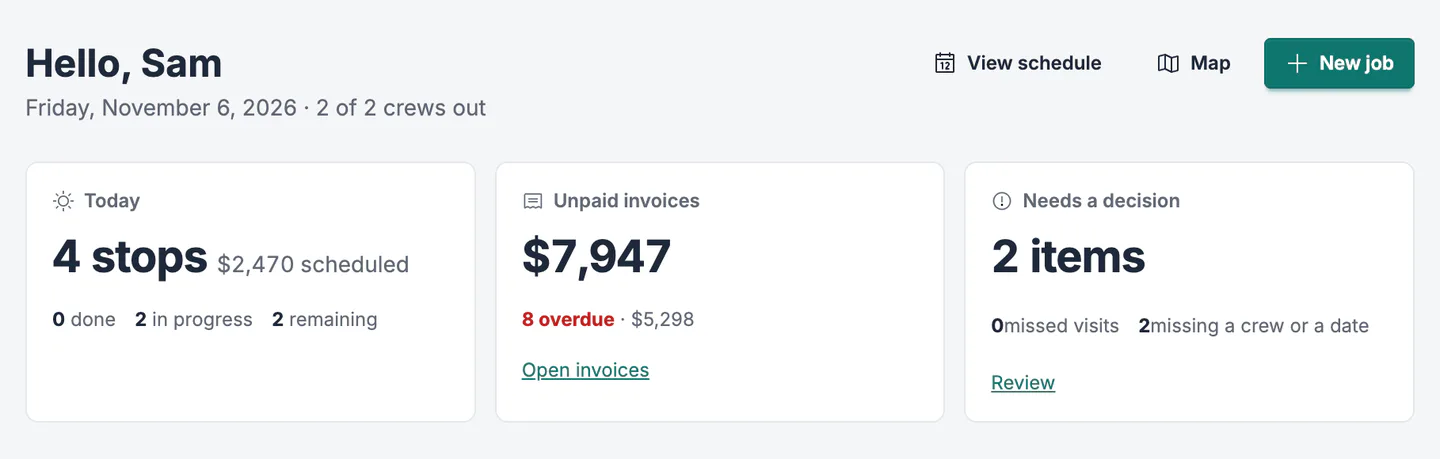
Three shortcuts sit at the top right: View schedule opens the calendar, Map (Pro and Business plans) opens the live crew map, and New job starts a job.
The Day at a Glance
Three tiles sit under the greeting:
- Today – how many stops are scheduled on the day you are browsing and what they are worth, with how many are done, in progress and remaining. A red late count appears when visits from earlier days are still open; it counts every late visit, not only that day’s.
- Unpaid invoices – the total of invoices sent but not yet paid, how many are overdue and for how much, and an Open invoices link.
- Needs a decision – see Needs Attention.
At the bottom of the page, This week vs last week compares Revenue completed, Jobs completed, Quotes accepted and Hours on the clock with the week before.
Needs Attention
The Needs a decision tile counts late visits, open jobs missing a crew or a date, and skipped visits not yet rescheduled. Click a number or Review to open the Needs attention page. The page is also in the sidebar, where a badge shows the total.
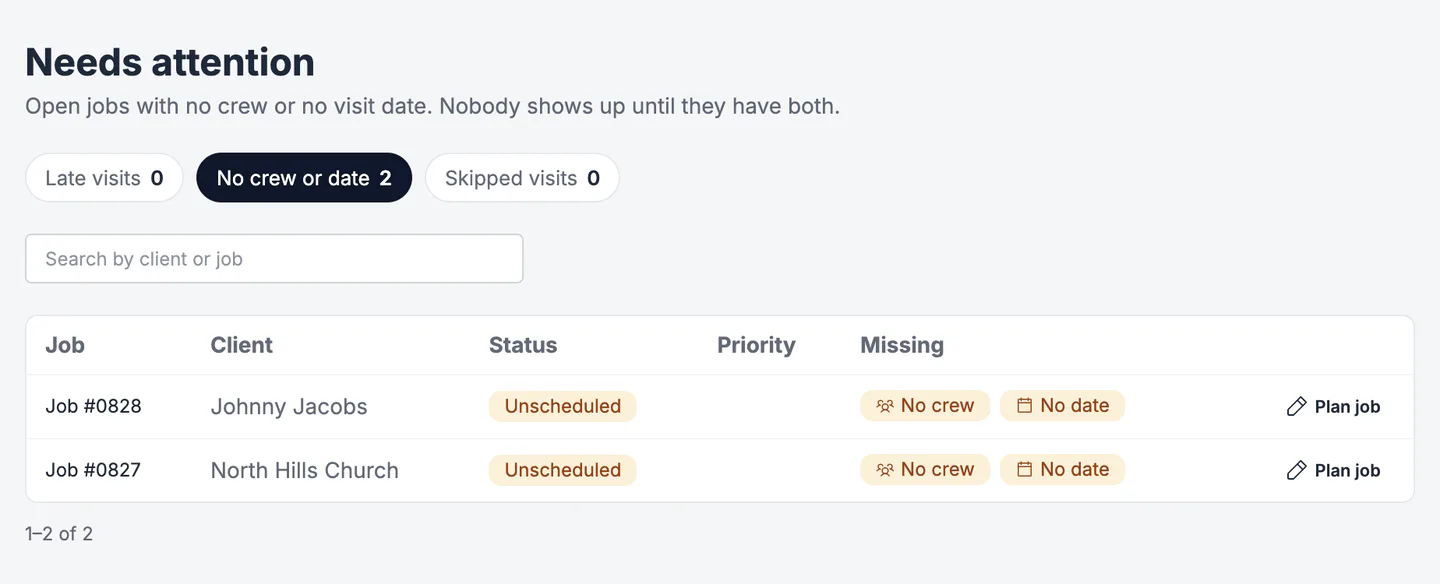
Chips at the top switch between three lists. A search field filters by job or client name, and lists run 25 to a page. The lists do not depend on the day you are browsing on the dashboard, so a job stays until you handle it.
Late visits
Open jobs whose last visit date has passed without anyone completing them, whether the crew never started or started and never finished. Each visit of a recurring job is its own job.
The most recently missed job comes first, and the heading says how many days late the oldest is. Each row shows the job, client, crew, visit date with how many days ago it was, and status. A second row of chips narrows the list to one crew, and In the jobs list opens the same jobs there.
Clear a row in one of two ways:
- Reschedule – pick a new date and click Move visit.
- Mark completed – for work that was done but never recorded. After you confirm, the job is completed and its status history notes that a manager marked it completed after the visit date. It is invoiced as usual, no overage is recorded, and the client does not get a completion email.
Mark completed also appears on the job’s own page and in the mobile app for any late job. If the visit was called off instead, cancel the job from its page – see Canceling a Job.
No crew or date
Open jobs that nobody can do yet. Each row shows the job, client, status, priority and what is missing: No crew, No date, or both. Jobs with a date but no crew come first. Plan job opens the job form so you can fill the gap.
Skipped visits
Visits that were skipped and are still waiting for a new date, longest waiting first. Each row shows the reason and who skipped it. Reschedule to puts the visit on the date shown on the button: the crew’s next day with scheduled work, or tomorrow if there is none. Open the job to pick another date or to cancel it. See Skipping a Visit.
Date Navigation
Next to the Crew schedule heading, the arrows step one day at a time and clicking the date opens a calendar. A Today button appears whenever you are on another day. The Today tile and the weekly comparison follow the day you pick.
Crew Schedule Cards
Each active crew has a card for the day:
- Crew name and job count. The name links to the crew.
- Route badge – Optimized, Manual order, or Stale (jobs changed since the last optimization). There is no badge until a route has been optimized.
- Missing-address warning – a pin icon when the crew has jobs but your company has no located address. Routes then start from the first job. Click the icon to add the address.
- Active job banner – Traveling or Working, with the job and client.
- Team members – initials colored green when clocked in (with hours so far today), amber when On break, gray when Off. Click one to open that person’s timesheet.
- Route stats – driving distance and drive time, once the route is optimized.
- Mini route map – the day’s stops and the planned path.
- Job list – jobs in route order with position number, status, client and arrival time. Estimated times start with a tilde (
~); a job with a locked start time shows a lock icon, or a warning icon when the route arrives after that start. Travel time between stops appears once a route exists.
The active job banner and team members show only when you are viewing today.
Searching Crew Cards
The search field above the cards filters by crew name, crew lead, job name, or client name.
Drag-and-Drop Reordering
Drag a job by its handle to change the order. The badge changes to Manual order and travel times are recalculated. When your routing budget is used up, the new order is still saved but the travel times stay as they were until it resets.
To give a job to another crew, drag it by its handle onto that crew’s card, even an empty one. The job moves to that crew right away, on the same day, and the page shows where it went. Both crews’ routes for the day are marked out of date; use Optimize on a card to rebuild one. Finished jobs and visits from past days stay where they are. You need two or more crews.
Route Optimization
The route icon on each card (Optimize, or Re-optimize after the first time) calculates the most efficient order for the day. It works without leaving the page: the card shows the new order and the message appears at the bottom of the screen. It is disabled while the route is in the order Jeero calculated and nothing has changed, and comes back when the route turns stale or after you reorder it by hand. After a manual reorder, Restore optimized order brings back the optimized order, as long as the route still has the same jobs. The arrow icon beside them (View route) opens the crew’s full route page. The last icon (Merge day) has the crew join another crew for the day – see Merge Two Crews for a Day. On a merged day the card says who the crew is working with, and the icon becomes Unmerge.
Optimizing uses some of your monthly routing budget. The ring next to the Crew schedule heading shows how much of the month is used and about how many more routes fit. When the month’s budget or today’s share runs out, Jeero says when building is possible again. See Route Optimization.
Job Performance
Job performance, under Money in the sidebar, shows completed jobs that ran past their estimate. It is on the Business plans (and Enterprise).
Chips set the window: 30 days (the default), 60 days, 90 days or 12 months. Four tiles summarize it:
- Over estimate – how many completed jobs ran over, out of all completed jobs that had an estimate.
- Overage rate – the percentage that ran over, with the number that finished on time.
- Average overage – the average minutes over, with the worst case beside it.
- Total time over – the hours lost to overruns.
The By crew table shows the same numbers per crew. Show jobs narrows the list below to one crew (the tiles keep covering the whole company) and Show all clears it. The list, 25 to a page, gives each job’s estimated time, actual time and overage.
Overage alerts opens My company > Alerts, where you turn on the job overage alert and set how many minutes over an estimate triggers it. See Jobs – Overage Tracking.