My Account
Overview
My account holds what belongs to you rather than to the company: language, password, two-step verification, notification choices and deleting your account. Everyone has it, on every plan. On the web, click your name in the sidebar and choose My account. In the mobile app, the same settings sit on the More tab.
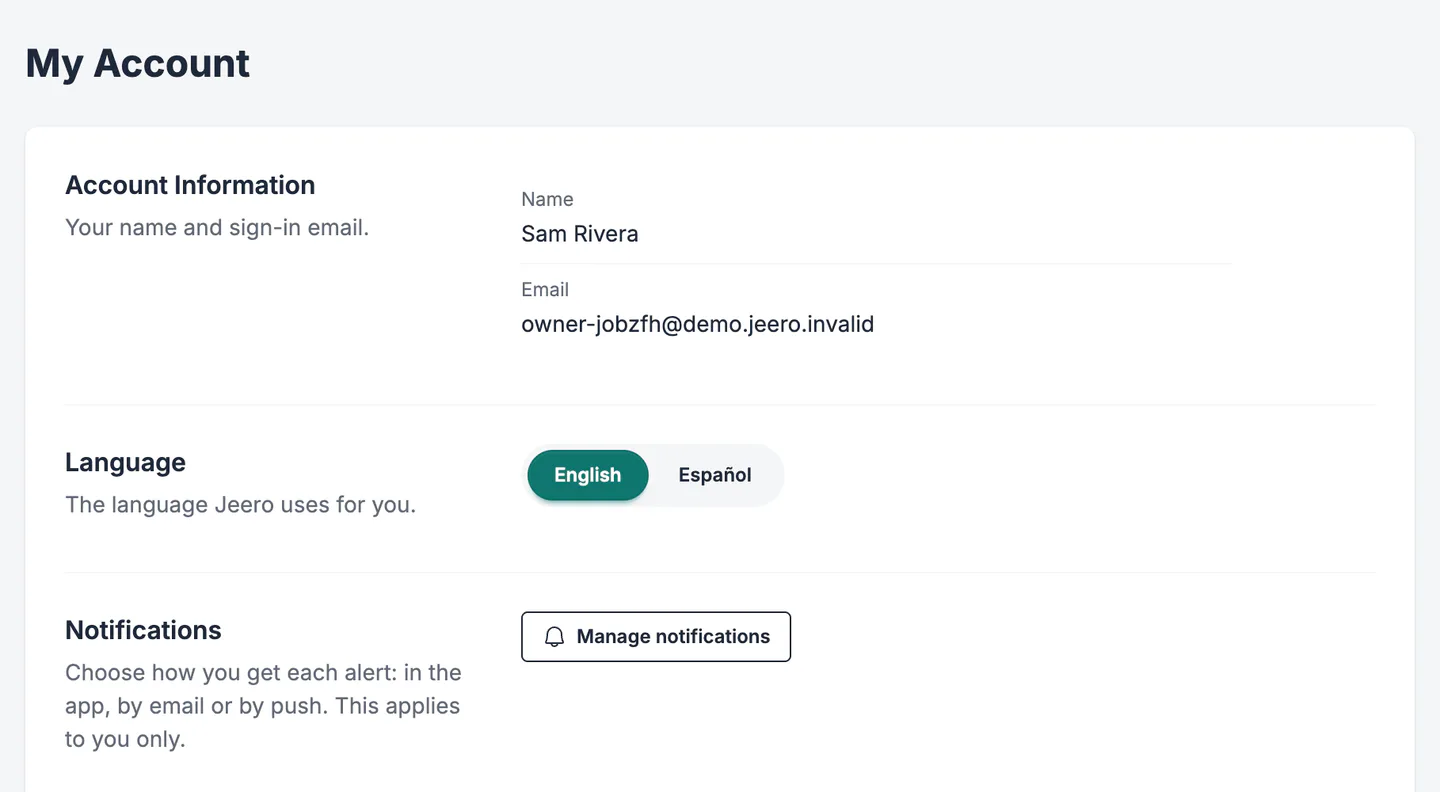
Name and Email
The Account information card shows your name and sign-in email, but you cannot edit them here. An Owner or Manager changes them from the Employees page; see changing a member’s email or password.
Language
The Language row switches Jeero between English and Spanish for you and saves the choice to your account. See Getting Started for the mobile app.
Notifications
Owners and Managers have a Notifications card with a Manage notifications button; crew members set theirs in the mobile app. See controlling what you receive.
Changing Your Password
- Under Change password, type your Current password.
- Type the New password and repeat it under Confirm new password. It needs at least 8 characters and cannot be one found in a data breach.
- Click Update password.
The change signs you out everywhere else – every other browser and the mobile app – and cancels any password reset link you had been sent. The mobile app has no screen for changing it by choice, so change it on the web.
If you signed up with Google or Apple there is no password to change, and the card is not shown. If a Manager set you a temporary password, Jeero asks you to choose your own the next time you sign in; see Team Management.
Two-Step Verification
Two-step verification is optional. With it on, after your password (or Google or Apple sign-in) you type a 6-digit code from an authenticator app such as Google Authenticator or 1Password. The mobile app has the same screen under More > Two-step verification.
Turning It On
- Under Two-step verification, click Turn on.
- Scan the QR code with your authenticator app. If you cannot scan it, type the setup key shown below the code into the app instead.
- Type your Current password (Google and Apple accounts type their email instead) and the 6-digit code the app shows, then click Turn on.
- Save your 10 backup codes with Copy or Download, then click I saved my codes. This is the only time they are shown.
Turning it on signs you out everywhere else and sends you an email saying it is on. In the mobile app, Open in authenticator app adds Jeero to the app on the same phone.
Signing In With It On
After your password, the Enter your code page asks for the code from your app. Trust this browser for 30 days is ticked by default, so that browser skips the code for a month; changing your password, or turning two-step verification off and on, ends the trust. The mobile app has no trust option: it stays signed in anyway.
Five wrong codes send you back to the sign-in page. Ten wrong codes in 15 minutes, across every browser and the app, lock the step for 15 minutes.
Backup Codes
Each backup code signs you in once in place of the app code. Using one sends you an email, and My account says how many are left. To replace them, type a code from your app under New backup codes and click Make new backup codes; the old ones stop working.
If You Lose Your Phone
Sign in with a backup code, then turn two-step verification off and on again with your new phone. With no backup codes left either, contact support: once they have confirmed who you are, they turn it off so you can sign in with your password alone. That sends the usual “it’s off” email, so you know if someone else asked for it.
Turning It Off
Under Turn off, type your Current password (or your email for a Google or Apple account) and a code from your app or a backup code, then click Turn off two-step verification. Signing in asks for your password only again, and you get an email saying so.
Downloading Your Data
The Owner sees a Download all your data card on My account. See downloading your data.
Deleting Your Account
Deleting your account is permanent. Under Delete account, type your password (or your email for a Google or Apple account), click Delete my account and confirm. In the mobile app it is More > Delete account; an account still on a temporary password must choose its own first.
What happens:
- Your name, email, phone numbers, location history and notification data are removed for good. You are signed out everywhere and cannot sign in again.
- Any company you own is scheduled for deletion. Access ends and its subscription is canceled at once; all of its jobs, clients, invoices and team data are deleted after 30 days. Contact support within that window to cancel, for example to hand the company to a new owner. Download your data first.
- Timesheets, expenses, mileage and job history your employer must keep stay, with your name replaced by “Deleted User”.
Signing Out
On the web, click your name in the sidebar and choose Sign out; only that browser is signed out. In the mobile app, Sign out is at the bottom of the More tab. To end every other session at once, change your password.