Team Management
Overview
You manage your team on the Employees page, under Team in the sidebar. Only Owners and Managers can open it, and it is on the web only – the mobile app has no team management.
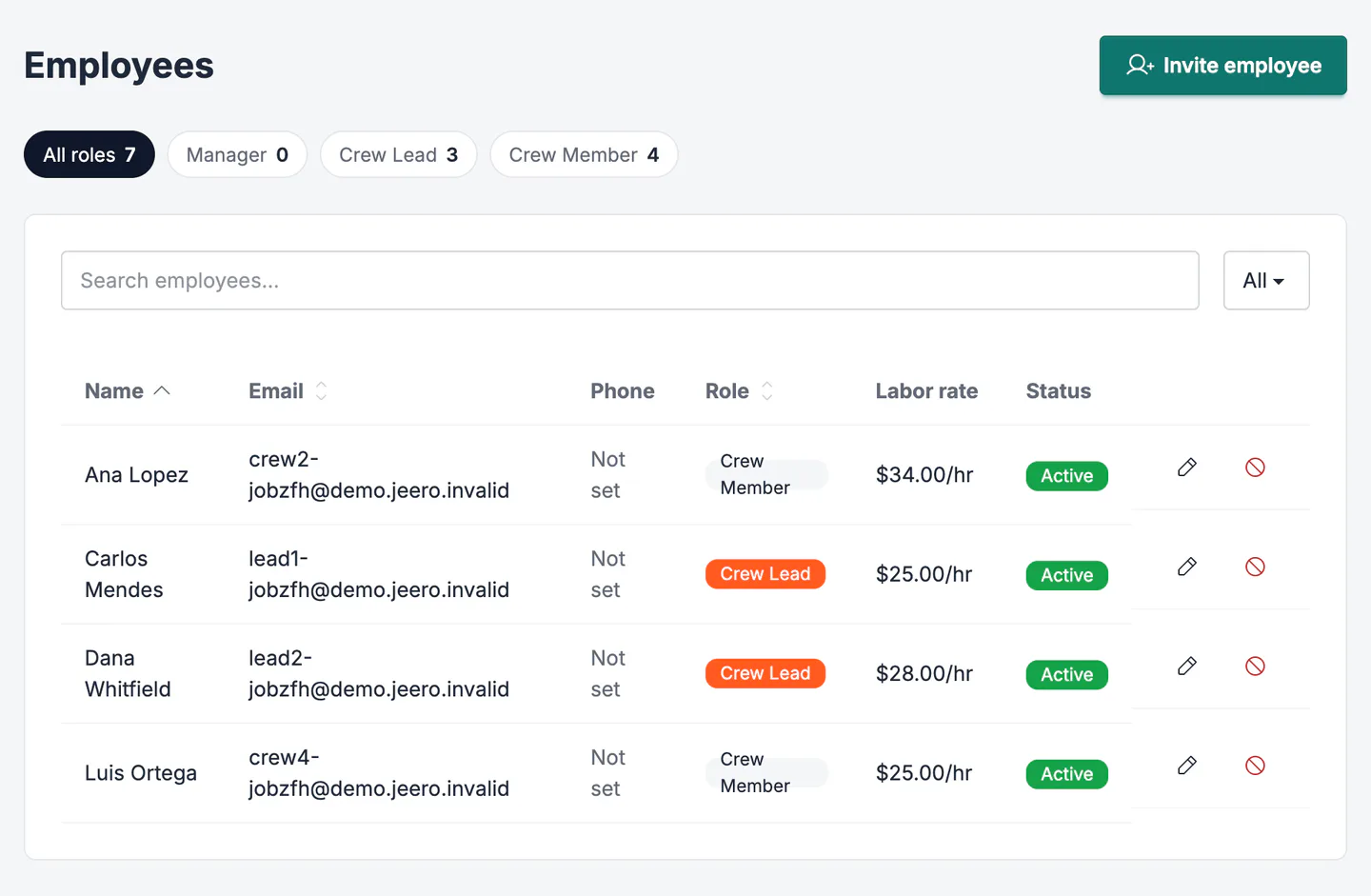
The list shows Managers, Crew Leads, and Crew Members. Filter it by role or by Active / Inactive, or search by name or email.
Inviting Employees
- Go to Employees and click Invite employee.
- Enter the person’s email address and select a role. The Role permissions table below the form shows what each role can do.
- Click Send invitation.
An Owner can invite a Manager, Crew lead, or Crew member. A Manager can invite a Crew lead or Crew member only. Nobody can be invited as an Owner.
You need to have verified your own email address before you can send invitations.
The invitee gets an email with a link:
- If they are new, they enter their name and a password to create an account.
- If they already have a Jeero account, the link alone does not sign anyone in. They click Sign in, sign in to that account (with their password, Google, or Apple), and land back on the invitation, where they click Accept invitation. Your company is added to that account – a worker can belong to more than one company.
- If they are signed in to a different account, the page says which address the invitation was sent to and offers Sign out and switch account.
- An account whose email is not confirmed has to confirm it before it can accept. After confirming, it comes back to the invitation.
Invitations expire after 7 days. Until then they appear under Pending invitations on the Employees page, with the time left. Inviting the same address again cancels the earlier invitation, so only the newest link works; its seat passes to the new invitation, so this works even when every seat is taken. A Manager cannot re-invite an address that already has an open Manager invitation: the Owner cancels that one first.
Resending or Canceling an Invitation
Each invitation on the Employees page has two buttons:
- Resend emails a fresh link, good for another 7 days. The old link stops working. Use it when the email was lost, or when an invitation has expired: expired invitations stay on the list with an Expired badge until you resend or cancel them. One invitation can be resent once every 5 minutes.
- Cancel takes the invitation back. Its link stops working, and opening it says the invitation was canceled. Its seat is not refunded: it stays yours for the next person, or remove it under Seats and your bill drops at the next renewal.
You can resend or cancel only invitations for roles you can invite: a Manager cannot touch a Manager’s invitation.
Seats
Each active team member uses one seat on your plan, and so does each pending invitation until it is accepted, canceled, or expires. During the free trial there is no seat limit.
The owner adds or removes seats in the Seats panel at the top of the Employees page. With no seat free, the invite form offers the owner Continue to add a seat: confirm it on Stripe and the invitation is sent. A manager with no seat free is told they are out of seats and to ask the owner to add one.
Resending a pending invitation keeps its seat. Resending an expired one needs a free seat again. Accepting or approving an invitation never waits for a seat: it already has one. See Billing and Plans.
Approving an Invitation Yourself
You don’t have to wait for a new person. Click Approve next to a pending invitation, enter their name and a Temporary password, and click Create account and approve. Give them the password: they can sign in right away, on the web or in the mobile app.
The account is theirs to take over:
- The password is temporary. The first time they sign in, on the web or in the mobile app, Jeero shows Choose your own password before anything else, and the password you typed stops working.
- The email is not confirmed yet. Jeero emails them a verification link. Until they open it, the account works in your company only: it cannot be signed in to with Google or Apple, accept another company’s invitation, send invitations, or send quotes and invoices to clients. A banner with a Resend button reminds them.
Approve only creates an account for someone new. Someone who already has a Jeero account has to accept from the link in their own email.
You see Approve only for roles you can invite: a Manager cannot approve a Manager’s invitation.
Roles and Access
There are four roles in two groups: Office (Owner, Manager) and Field (Crew Lead, Crew Member). Each person has one office role, one field role, or one of each – for example a Manager who also leads a crew. A company has exactly one Owner. Permissions are fixed by role, not toggled individually.
| Role | What they can do |
|---|---|
| Owner | Everything: company settings, billing, team, clients, jobs, and invoices. The only person who can change the plan or seats, pay the bill, or connect Stripe, QuickBooks, or a texting number. |
| Manager | The same day-to-day access as an Owner, including company settings. Sees the plan and seats, but cannot change them, pay the bill, change roles, or connect Stripe, QuickBooks, or a texting number. |
| Crew lead | Runs visits: on my way, start, finish, skip, and reschedule, with before and after photos. Sees the schedule, clocks in and out, and submits expenses (Pro and up). Cannot create, edit, or cancel jobs, or open clients, quotes, invoices, billing, or company settings. |
| Crew member | Sees their schedule and jobs, clocks in and out, and submits expenses (Pro and up). Cannot run visits or add photos. |
Owners and Managers can do field work too: My field work in the sidebar opens the field view, where they can clock in and run jobs. Give them a field role as well (see below) and they count as field workers everywhere: their hours are costed, they show on timesheets, they get crew alerts, and with Crew lead ticked they can be picked to lead a crew and add crew notes.
Who Can Manage Whom
Editing, deactivating, and reactivating follow the same rule:
- An Owner manages Managers, Crew Leads, and Crew Members.
- A Manager manages Crew Leads and Crew Members. Managers see other Managers in the list, without the edit and deactivate buttons.
- An Owner is never managed from this page. Owners change their own password under My account.
- Nobody can edit or deactivate themselves here.
Changing a Member’s Role
Only Owners can change a role. On Employees, click the edit (pencil) icon next to a member. Under Role, tick at most one box under Office (Manager) and at most one under Field (Crew lead or Crew member), and at least one box in all, then click Save. Owner is locked: nobody can be made an Owner, and a company keeps its one Owner. Managers see the boxes greyed out.
The Owner isn’t on the Employees list. To work in the field yourself, open My company > Profile, tick Crew lead or Crew member under Your field role, and click Save field role.
Changing a Member’s Email or Password
The edit form also holds the member’s name, email, password, phone numbers, and labor rate.
- Email and Password can be changed only for someone who belongs to your company alone. For someone who also belongs to another company, the form shows the email without a field and has no password field. They can change their own password under My account.
- A changed email has to be confirmed from the new inbox. Jeero sends a verification link to the new address, and, unless you approved the account yourself, the member cannot sign in until they open it.
- A password you set here is temporary: the next time the member signs in, on the web or in the mobile app, Jeero shows Choose your own password first, and the one you typed stops working.
- Changing either one signs the member out everywhere – every browser and the mobile app – and cancels any password reset link they had been sent.
Sign-ins and Devices
Each person on the Employees list has a short line under their name, such as Last active about 2 hours ago · iPhone 15 · v1.0.14. It shows when they last signed in to your company or used the mobile app, the phone they used last, and its app version. No activity yet means they have not done either.
A yellow badge points out something to fix on their phone:
- Update needed: their app version is too old to keep working. They need to update it from the App Store or Google Play.
- Update available: a newer version is out. The app still works.
- Location off: the app is not allowed to use their location, so they won’t show on the live map while clocked in. Shown only for people who work in the field.
- Notifications off: they won’t get alerts about new or changed jobs.
Click a person’s name, or the phone icon next to the edit button, to open Sign-ins and devices:
- Devices shows every phone they use the Jeero app on: the model, the phone’s system version, the app version, whether location and notifications are allowed, the phone’s language and time zone, and when it was last used.
- Sign-ins lists their recent sign-ins to your company, newest first: when, whether it worked (Signed in or Failed), how (password, Google, or Apple, and whether a two-step code was used), on the web or in the app, the browser or phone, the approximate location, and the IP address. The location comes from the IP address, so it can be off by a city or more.
Use it to help someone who can’t sign in, or to spot a sign-in you don’t recognize. Sign-ins are kept for 90 days. Someone who also works for another company never shows you their sign-ins there.
Owners are tracked too: as the Owner, click Your sign-ins and devices at the top of the Employees page, next to Invite employee, to see your own page.
An Owner can open this page for anyone on the list, and for themselves. A Manager can open it for everyone on the list too, other Managers included; the Owner’s page is never shown to a Manager.
Contact Details
On the edit form, Phone numbers holds one or more numbers per member. Click Add phone to add one, pick a label (Mobile, Home, Work, Office, or Other), and mark one as Primary. The primary number appears in the Phone column of the Employees list.
Deactivating and Reactivating Members
To end someone’s access, find them on Employees, click the Deactivate (prohibit) icon, and confirm.
They lose access to your company immediately and the mobile app signs them out. Their hours, notes, and job history are kept. Click Reactivate to restore access with the same role; it uses a seat, so it needs one free on your plan.
Checkout always includes a seat for everyone on your team, so no one has to be deactivated to subscribe. See Billing and Plans.
Labor Rates
A member’s Labor rate is their hourly cost, used for job costing (see Costs and Profitability). Set it on the edit form, in your company’s currency, and click Save. It shows in the Labor rate column of the Employees list; a rate of zero counts as not set.
The labor rate is what an hour of that person costs your business in full: their wage plus payroll taxes, workers’ comp and other insurance, and benefits. It is not their pay rate. Payroll still pays the real wage; Jeero sends only hours to QuickBooks Payroll, never the rate (see QuickBooks).
The Owner sets their own rate under Your labor rate on My company > Profile (click Save rate), so the owner’s own hours are costed too.
Only Owners and Managers see labor rates – crew cannot see their own or anyone else’s.