Subcontract a Job
How It Works
When your crews can’t take a job, you can offer it to other businesses that use Jeero. The first one to accept does the work. The job stays yours: you keep the client, the quote, the invoice and the payment.
The business that accepts sees only what it needs to do the work: the job name, the tasks, the visit date and time, how long it should take, the client’s name and address once it accepts, your notes and the pay you set. It sees the client’s phone number only if you share it. It never sees your prices, costs, quotes, invoices or payments.
You agree on payment with that business yourself. Jeero doesn’t move money between the two of you.
Who Can Send Offers
- Plan. Sending offers is part of Pro and Business. On Starter, Subcontract job opens a note saying it’s on Pro, with See plans for the owner. During the free trial, it opens Subscribe to send offers: offers go out once you subscribe to Pro or Business, and the owner gets a Subscribe button. See Billing and Plans.
- People. Owners and managers send, cancel and extend offers.
- Receiving works on every plan, trial included. See Receiving Subcontracted Jobs.
Which Jobs Can Be Offered
Subcontract job shows at the top of a job page when the job:
- Is a one-time job, not part of a recurring series.
- Has a visit date, and that date hasn’t passed.
- Hasn’t started, isn’t closed and hasn’t been invoiced.
- Isn’t already being done by another business, and has no open offer.
A visit of a project can be offered on its own, or together with every other visit of the project that can still be offered (see Offering Several Visits of a Project).
Sending an Offer
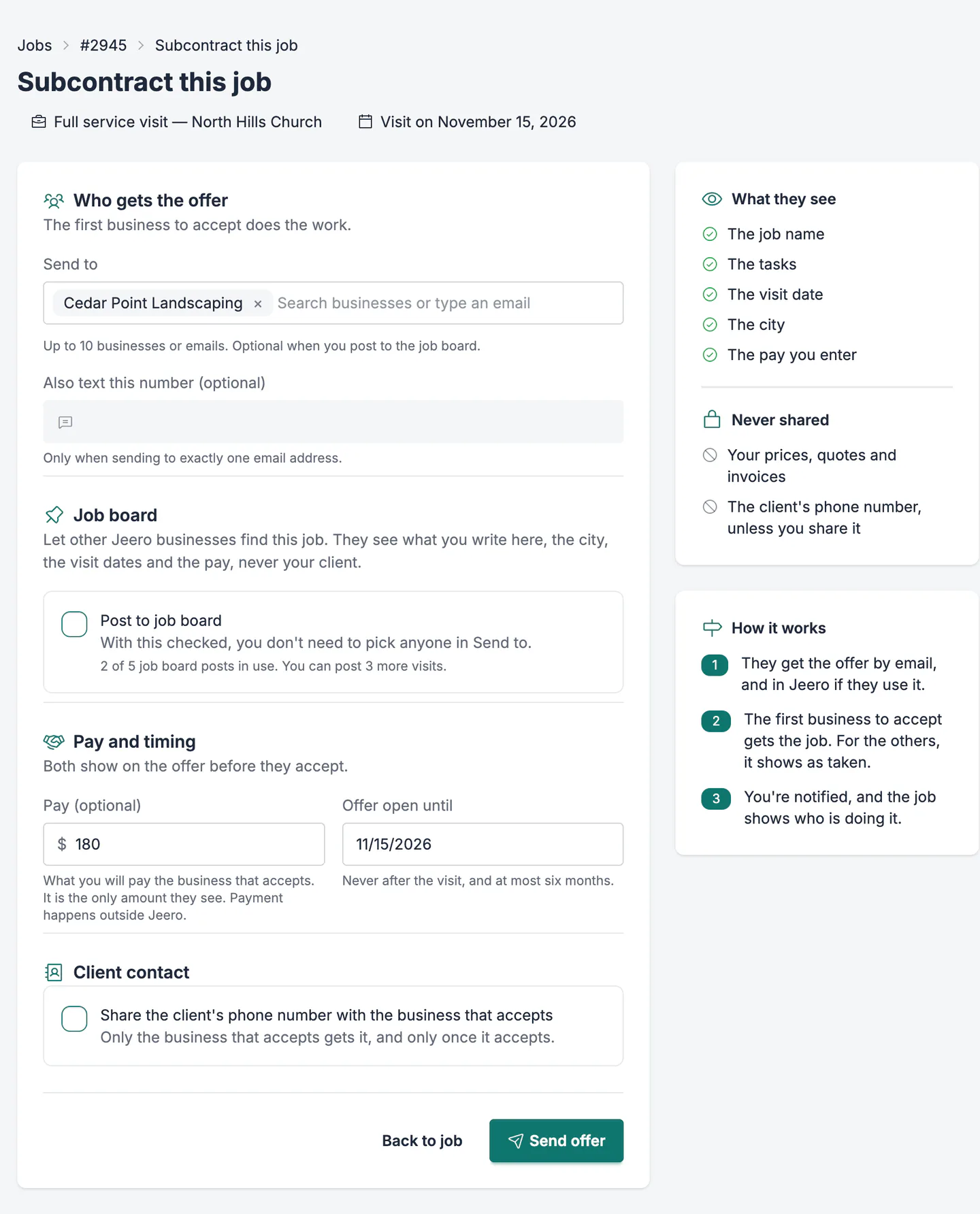
- Open the job and click Subcontract job. The Subcontract this job page opens. You can also start from Subcontracts: click Subcontract a job, search by job number or client, and pick the job. Only jobs that can be offered are listed.
- In Send to, search for a business by name and pick it, or type an email address and press Enter or a comma. You can add up to 10 recipients.
- Also text this number (optional) – when you send to exactly one email address, you can text the offer to a mobile number too.
- Pay (optional) – what you will pay the business that accepts. It’s the only amount they see.
- Offer open until – starts 7 days out. It can’t be after the visit or more than six months away.
- Check Share the client’s phone number with the business that accepts if their crew should be able to call the client.
- Click Send offer.
On a visit of a project, when more than one of its visits can still be offered, a What to offer section comes first: pick This visit or All remaining visits (N), which lists their days.
The business list only shows businesses you sent to before and businesses that chose to list themselves (see Receiving Subcontracted Jobs – Let Others Find You). For anyone else, type their email address.
Offering Several Visits of a Project
All remaining visits offers, in one offer, every visit of the project that can still be offered: the ones with a date ahead that haven’t started, aren’t invoiced, and aren’t offered or done by another business. The visit you opened is one of them.
- One business, one pay. The first business to accept takes every visit in the offer, and the pay covers them all.
- What they see. The offer lists each visit’s day and the project’s tasks.
- Open until. The offer closes before the first visit it covers starts, at the latest. Moving that visit earlier pulls the end in with it.
- One withdraws all. If any visit in the offer is canceled, skipped, started, completed, deleted, invoiced or loses its date, the whole offer is withdrawn.
- Visits stay put. While any visit of the project is offered or being done by another business, visits can’t be added to the project or removed from it. The project page says so.
- Each visit on its own after that. Once accepted, each visit has its own badge, history, requests to move it, confirmation and disputes, as a single job does.
- Later visits. To offer a visit the offer didn’t cover, open it and click Subcontract job. The business doing the project’s other visits is already picked in Send to.
Who Gets Told
- A business you picked gets a push and in-app notification for its owners and managers, and an email to the owner.
- An email address you typed gets an email with a link to the offer, plus a text if you added a phone number. If they don’t use Jeero yet, they can sign up from the link.
In the App
Owners and managers can send offers from the app too. Open the job and tap Subcontract job, or tap Subcontract a job on Subcontracts and pick the job. The form has the same fields as on the web. On Starter, or during the trial before you subscribe, the app explains what turns it on; plans are changed on the web.
Following the Offer
The Subcontract offer card on the job page sums up the offer: its status, the pay, who sent it and when, and how long it’s open. Client phone shared shows when you shared the phone number, and Covers N visits of this project when the offer covers several visits.
Click Open offer on the card for the offer’s own page, with everything about it: the recipients and how each answered, the photos and, for an offer on the job board, the listing, every bid or request, the questions and the messages. Jobs and the job’s number at the top of the page lead back to the job.
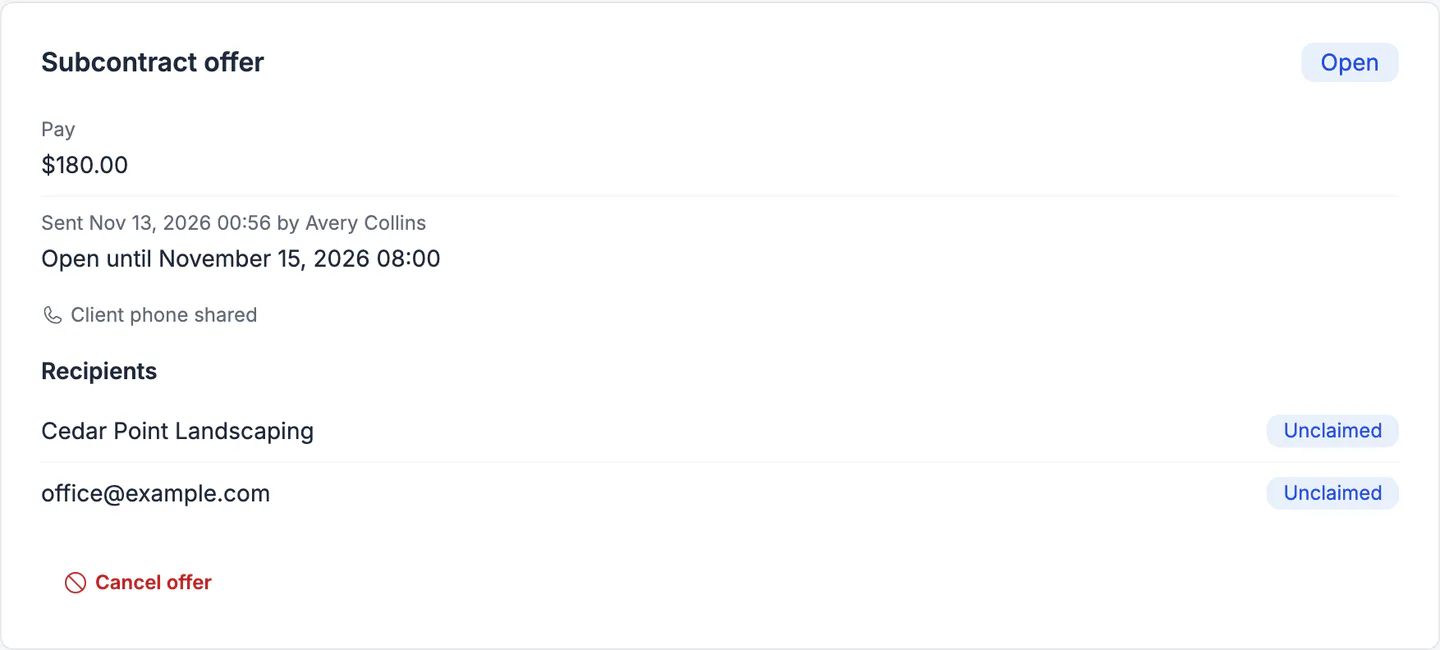
Offer statuses:
- Open – waiting for an answer.
- Accepted – a business took the job.
- Expired – nobody accepted in time. The job is still yours.
- Withdrawn – you canceled it, or it was withdrawn on its own because the job changed. In the app it reads Canceled.
- Given back – the business that accepted gave the job back.
Under Recipients, each one has its own status:
- Unclaimed – hasn’t answered yet.
- Accepted – took the job, with who accepted it, for which company and when.
- Declined – said no, with who declined and when.
- Taken – another recipient accepted first.
- Expired – the offer ran out before they answered.
- Withdrawn – the offer was canceled or withdrawn. In the app it reads Canceled.
The first business to accept gets the job. The offer closes for everyone else, and each link works only once.
Owners and managers get a push and in-app notification when an offer is accepted, declined, expires, or the job is given back.
Canceling or Extending an Offer
While an offer is open, the card and the offer page both have two controls:
- Extend – pick a New end date and click Extend. It must be later than the current end, before the visit, and within six months of sending.
- Cancel offer – every link in the offer stops working, and the businesses that haven’t answered are told it was withdrawn. The card then reads Withdrawn.
Jobs You Sent
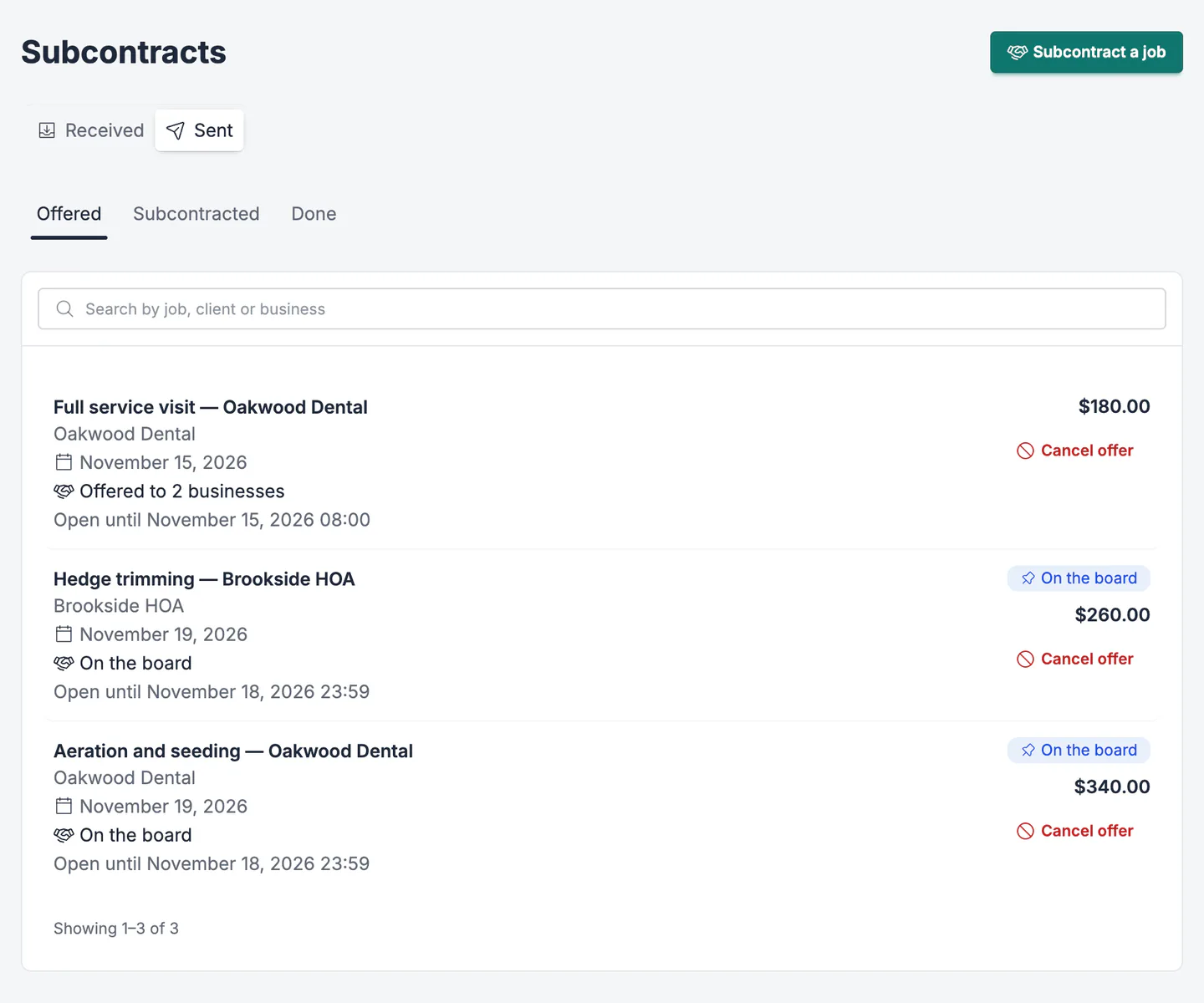
Subcontracts has two sides: Received, the jobs other businesses handed you, and Sent, your own jobs you offered out. Owners and managers see Sent, in three tabs:
- Offered – offers still waiting for an answer, with who each went to (or how many businesses), the pay and when it closes. Cancel offer on a row cancels it once you confirm.
- Subcontracted – jobs another business is doing now.
- Done – jobs another business finished.
Each row shows the job (click its name to open it), the client and the visit date. A project visit shows which visit it is and the project, such as Visit 2 of 3 · Patio build. An offer of several visits is one row that shows how many visits and their days, such as 3 visits · Patio build. Search by job, job number, client or business.
Badges and the Jobs Filter
On Jobs, each job you subcontracted carries a badge:
| Badge | Meaning |
|---|---|
| Offered | An offer is open and nobody has accepted it yet. |
| Subcontracted to business | That business accepted and is doing the job. |
| Done by business | That business finished the job. |
An offer that expired or was canceled, or a job that was given back, has no badge: the job is fully yours again.
A project’s row counts all its visits: 1 of 3 visits subcontracted, 2 visits offered, 1 subcontracted, 1 offered, or Subcontracted when every visit went to another business. The project page shows each visit’s badge.
The Subcontracting filter beside the crew filter shows only Offered, Subcontracted, Done by others or Not subcontracted jobs. A project is listed when any of its visits matches, and its badge still counts all its visits, so a project under Offered can read 1 subcontracted, 1 offered.
After It’s Accepted
The job page shows a Subcontracted to badge with the business’s name. While another business is doing the job, you can’t put one of your own crews on it.
The job stays on your schedule and dashboard. If you cancel the job or delete it, the other business is told right away, and so is their crew. The visit’s date and start time can’t change on your side any more: ask the business doing it to move the visit (see Moving the Visit).
Their crew can head out, start, pause and finish the visit, add before and after photos, write notes and fill in the job’s forms. Texts to your client go out from your company, as they do for your own crews. You see it all on your job as usual, then invoice your client as you normally would.
What Happens to the Other Business
Whatever you do to the job, the other business hears about it right away. Their office gets a notification, and so does the crew they put on it.
- Client and address stay put. You can’t change the job’s client or address, or change or delete that address on the client. Cancel the job with them, or wait until it’s done.
- The work stays as offered. They agreed to the tasks you offered, so the job’s service and part lines can’t be added, changed or removed. Add item and each line’s delete button show a lock that says why, and editing a line changes only its price and cost. To change the work, cancel the job and send a new offer. The pay in an offer never changes once it’s sent.
- They hear what you change. When you change the duration, the notes or the job’s forms, their office and crew get one notice listing what changed.
- Their route updates. When a move they accepted, a cancel, skip or delete, or a change to how long it takes touches the job, their crew’s route for that day is marked out of date so they can rebuild it.
- Their crew does the field work. Only their crew can tap On my way or Start. Until their crew heads out you can still cancel, skip or mark the job done (see Once Their Crew Heads Out).
- Their photos, notes and forms stay. You can’t delete the photos their crew added, change or remove their notes, or remove forms their crew filled in.
- Skip the visit. The job is taken back from them and they’re told you skipped this visit. If you put the visit back on the schedule, it stays yours with no crew: give it to one of your crews or offer it again.
- Visits taken together. When they accepted several visits of a project in one offer, canceling or skipping one of them takes back every one they haven’t finished. The others stay on your schedule with no crew, and they’re told. Visits they finished stay finished. Once their crew heads out on any of those visits, none can be canceled or skipped: open a dispute instead.
- Delete the job. Allowed only until their crew records something on it (photos, notes, drives, forms, or heading out), and never once a dispute was opened about it. After that, cancel the job instead so their records are kept.
- Mark it done. When you complete the job yourself before their crew heads out, or close out a missed visit they never started, they’re told you marked this job done, and the work counts as confirmed. When their own crew finishes it, you confirm the work instead (see Confirming the Work).
- No repeating. A job that is subcontracted or offered can’t be made recurring.
- No give-back after you invoice. Once you send an invoice for the job, they can’t give it back. They ask you to cancel it instead.
- Late jobs. If the job runs late, their office gets the late alert too.
- An open offer. If you cancel, skip, start, complete or delete the job (or any visit an offer of several visits covers), send an invoice for it, or take its visit date off, the offer is withdrawn on its own. Every business still deciding is told you no longer need this job, by notification or by email, and the offer’s link says the same. Moving the visit while the offer is open tells them the new date. Reopening a canceled job doesn’t bring the offer back: send a new one.
- Closing an account. If you close your Jeero account, the jobs they are doing for you are canceled and they are told, and your open offers are withdrawn. If they close theirs, your jobs come back to you and you get a notification.
Moving the Visit
While another business is doing the job, its visit moves only when that business agrees. On the job page, Reschedule and Unschedule are replaced by Ask to move, and on the job’s edit page the date and start time are locked with a note.
- Click Ask to move.
- Pick the New date. Add a Start time (optional) if the visit should start at a set time; leave it blank to keep the visit’s own time on the new day.
- Add a Message (optional) to say why, up to 500 characters.
- Click Send request.
Owners and managers of the business doing the job get a notification. Until they answer, the job page shows Waiting for the business, with the date you asked for. Click Cancel request to take it back. Only one request waits at a time.
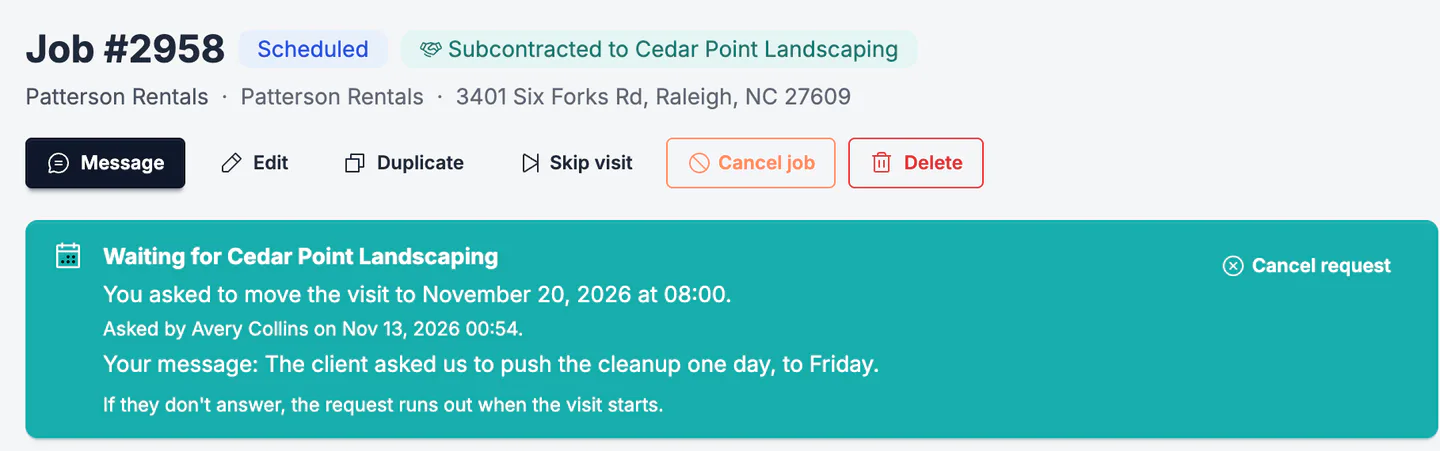
- Accepted – the visit moves at once. You get a notification, and your client and their crew hear about the new date as with any move.
- Declined – the visit stays as it was. You get a notification. They can still give the job back while their crew hasn’t headed out.
- Ran out – a request nobody answered runs out when the visit starts, and you’re told.
Once their crew heads out, the visit can’t move, so Ask to move shows locked.
Once Their Crew Heads Out
As soon as their crew taps On my way, only that crew moves the job on. On your job page, Cancel job, Skip visit, Complete job and Mark completed show locked: hover or tap one to see why. A note at the top says their crew is on the job.
If something is wrong, click Open dispute instead (see Disputes).
Confirming the Work
When their crew finishes the job, a banner on the job page asks you to check the work. You have 7 days from when they finished.
- Confirm work – click it and confirm. The business doing the job is told you confirmed it.
- Open dispute – if the work isn’t right.
- Do nothing – after 7 days the work is confirmed on its own and they’re told. While a dispute is open, the work isn’t confirmed on its own. Once we resolve the dispute, you get 7 more days to confirm the work or open another dispute, then it’s confirmed on its own.
Once confirmed, the job page says who confirmed it and when, or that it was confirmed automatically.
Disputes
A dispute tells us something went wrong between the two businesses. We look into it and get back to both of you. Opening one never changes the job.
- You can open one while their crew is on the job, or within the 7 days after they finish (or after we resolve a dispute), until the work is confirmed.
- The business doing the job can open one while it has the job, and up to 30 days after it finished, gave the job back or you called it off.
Owners and managers click Open dispute, pick a Reason (Work not done, Poor work, Called off unfairly, Not paid or Other), write the Details (up to 2,000 characters; What happened in the app) and click Open dispute. The other business sees the reason and details and gets a notification. Only one dispute is open at a time.
While it’s open, both job pages show Dispute open with who opened it, when and why. When we resolve it, both businesses get a notification with our note.
Subcontract History
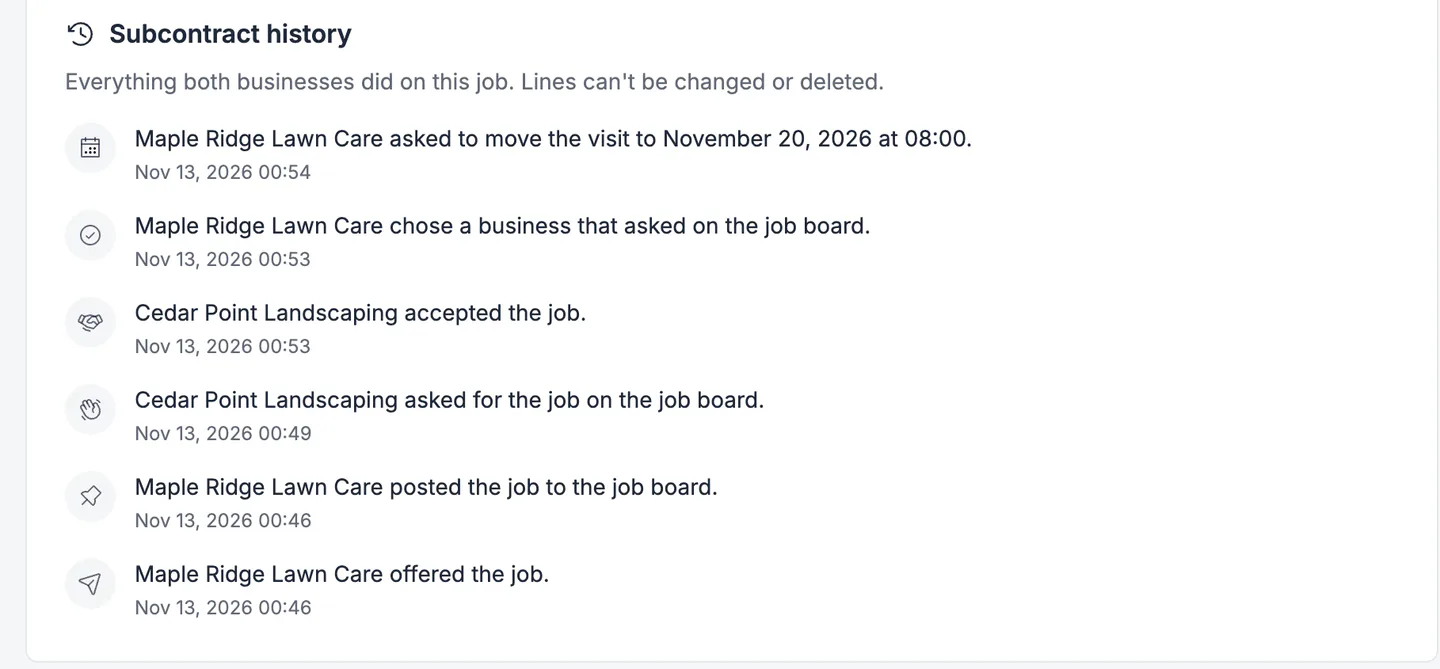
Subcontract history on the job page lists everything both businesses did on the job, newest first: the offer, who accepted it, the crew put on it, heading out, starting and finishing, photos, notes and forms added, requests to move the visit and their answers, cancels and skips, confirmation and disputes. Each line shows when it happened. Lines can’t be changed or deleted.
The business doing the job sees the same history on its own page, from the offer it accepted on.
When a Job Is Given Back
If the business that accepted can’t do the job after all, it can give it back until its crew heads out. You get a notification, with their reason if they added one. The card shows Given back by the business and when.
Visits accepted together in one offer are given back together: every one they haven’t finished comes back to you at once.
The job is yours again: plan it for one of your crews, or click Subcontract job to offer it again.
Managing It in the App
Owners and managers can follow and manage everything on this page from the app too. On the job, the Subcontract offer card has Extend and Cancel offer while the offer is open, and Open offer for everything about it, and a job another business is doing has Ask to move, Confirm work, Open dispute and Subcontract history. More > Subcontracts has the same Received and Sent sides, with the Offered, Subcontracted and Done tabs.