Receiving Subcontracted Jobs
How It Works
Another business that uses Jeero can offer you a job it can’t do. If you accept first, your crew does the work. The job stays theirs: they keep the client and send the bill.
Receiving works on every plan, free trial included. You agree on payment with the business that sent the job; Jeero doesn’t move money between you. The only amount you see is the Pay they set on the offer.
Only owners and managers can accept, decline, assign a crew or give a job back.
Getting an Offer
An offer reaches you in one of these ways:
- Email, sent to the address the other business typed, or to the owner when they picked your company from their list. A text can come too.
- Push and in-app notification: for your owners and managers when they picked your company from their list, or for you alone when they typed your email and you’re an owner or manager on Jeero.
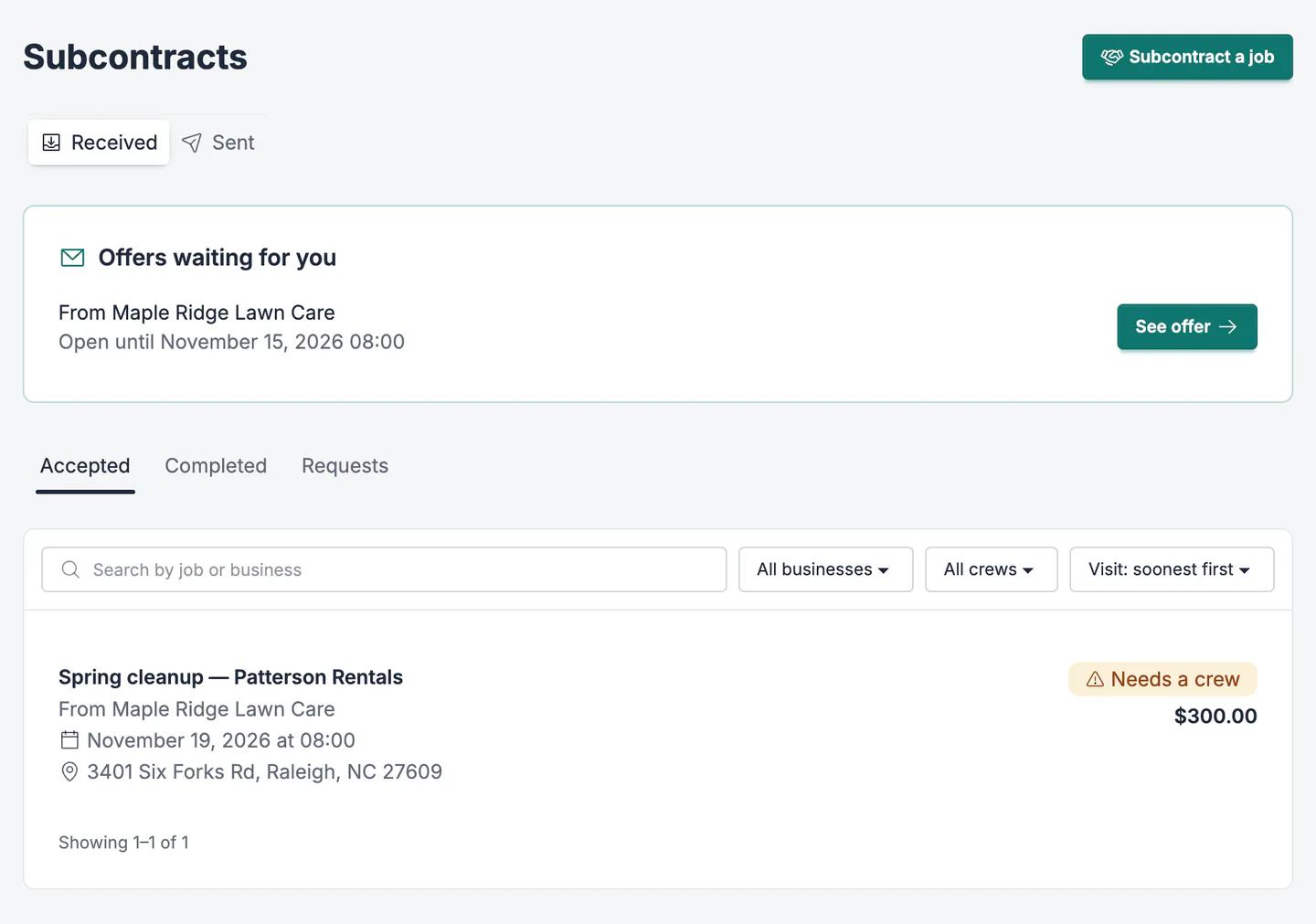
- Offers waiting for you, at the top of the Subcontracts page.
The offer shows who sent it, the job, the visit date, the city, the tasks and the pay, if any. The first business to accept gets the job, so answer soon. Each offer has an end date; after it, the link stops working.
An offer can cover several visits of one project. It then shows how many visits and each one’s day, and the project’s tasks. Accepting takes every visit in the offer, for the one pay shown. Each visit then shows on its own on your Subcontracts page, with its own crew, requests to move it, confirmation and disputes.
Accepting or Declining
- Click See the offer in the email, or See offer on the Subcontracts page.
- Not signed in? Pick Yes, log in or No, create an account. New accounts start with a free trial, and you come straight back to the offer.
- If you work for more than one company, pick the one that will do the job under Accept for.
- Click Accept or Decline.
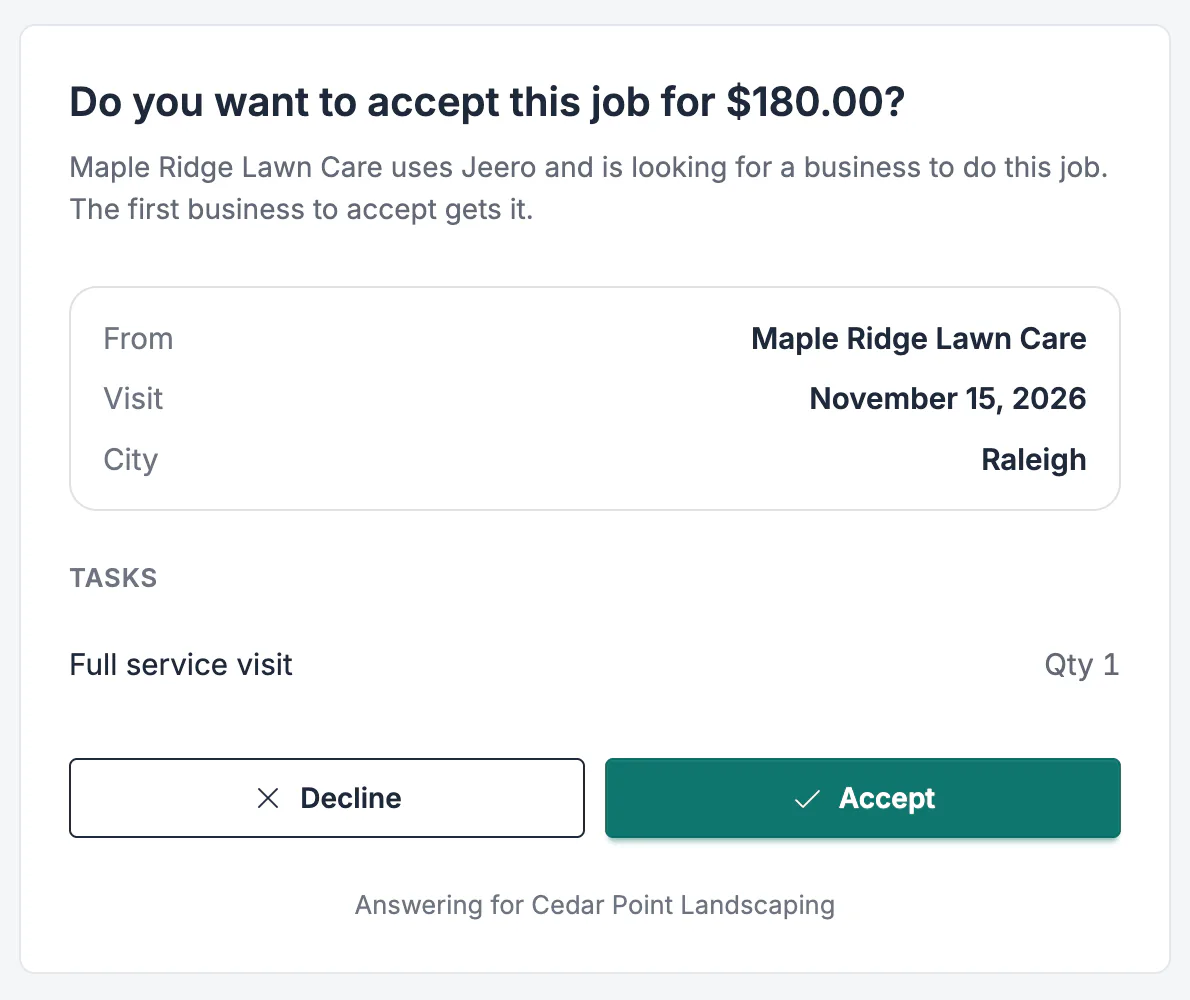
When you accept, the job lands on your Subcontracts page. When you decline, the sender is told. Each link works once.
You can’t accept when your email address isn’t confirmed yet, when you’re not an owner or manager, when your company’s plan or trial has ended, or when the offer was sent to another company. If you’re signed in to a different company than the one that should do the job, switch to it and open the offer again. The offer page tells you which one it is.
In the App
Owners and managers can answer from the app too. Tap the notification, or open More > Subcontracts and tap the offer under Offers waiting for you, then tap Accept or Decline.
The Subcontracts Page
Subcontracts is in the sidebar for owners and managers, and under More in the app. Its Received side lists the jobs other businesses handed you (Sent is for the jobs you offer out, see Subcontract a Job). Offers waiting for you sits at the top, then two tabs:
- Accepted – jobs you accepted that aren’t done yet. Needs a crew marks the ones without a crew.
- Completed – jobs your crew finished.
If your company uses the job board, a Requests tab lists the jobs you asked for there. Search by job or business, or narrow the list with All businesses, All crews (or No crew yet) and the sort order.
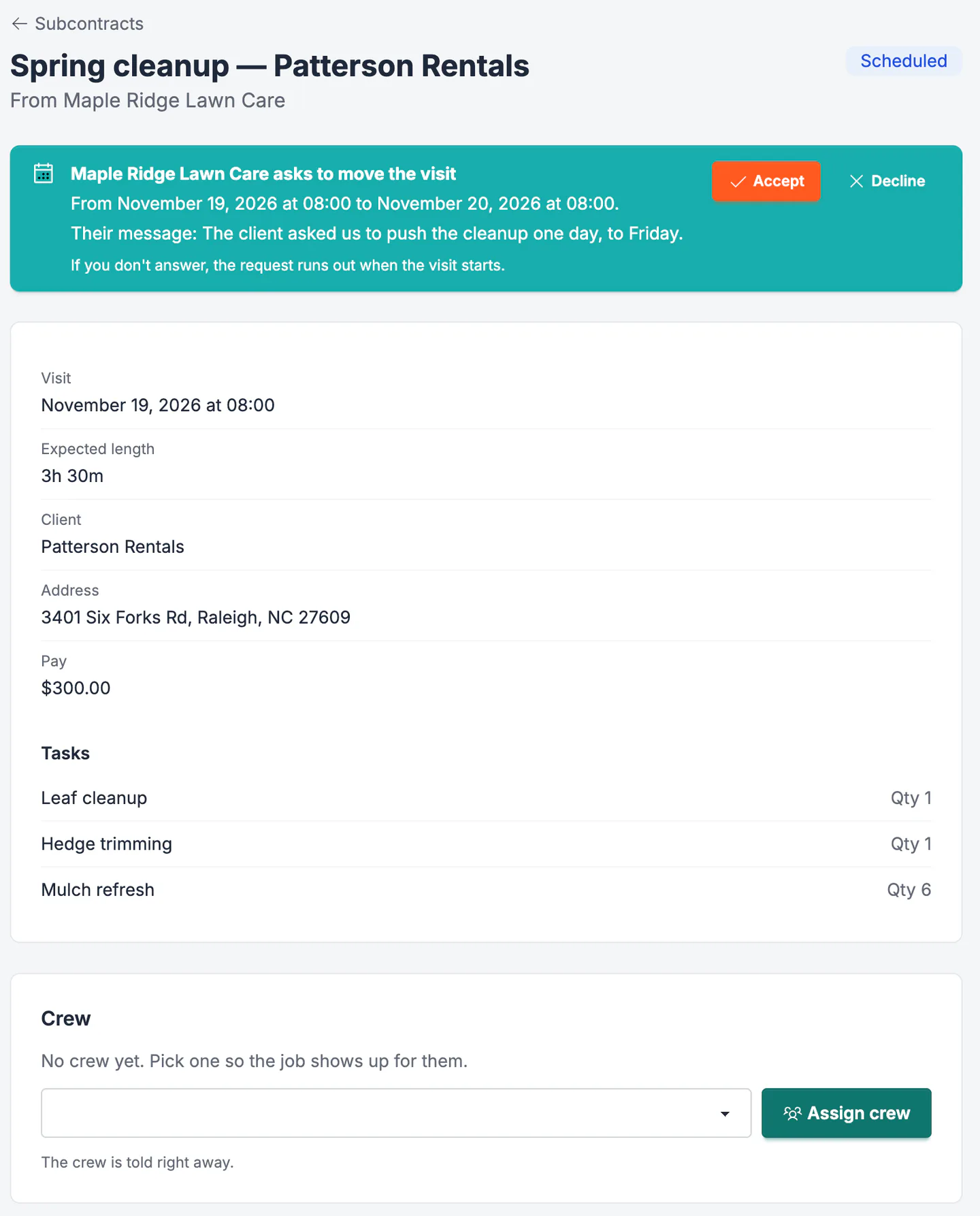
Open a job to see the visit, the expected length, the client and address, the tasks, the pay and the sender’s notes. The client’s phone shows only when the sender chose to share it.
Assigning a Crew
On the job, under Crew, pick one of your active crews and click Assign crew. The crew is told right away. To change crews, pick another and click Assign crew again.
The job then shows on your Schedule, Dashboard, the crew’s route and the map like your own jobs, marked with the sender’s name. Only the sender can skip the visit, and the visit moves only if you accept their request (see below). If they cancel it, you and your crew are told.
Giving a Job Back
Can’t do it after all? Under Give back, add a reason if you like, then click Give back job and confirm. The sender is told, with your reason. The job leaves your list.
You can give a job back until your crew heads out. After that, it’s yours to finish.
Visits you accepted together in one offer go back together: giving back one gives back every one you haven’t finished. If your crew started any of them, or the sender invoiced one, none can go back, and the message names that visit. Likewise, if the sender cancels or skips one of them before your crew heads out, all the ones you haven’t finished go back to them, and you and your crews are told.
Requests, Confirmation and Disputes
The business that offered the job can’t change the work you agreed to, and can’t call the job off once your crew heads out.
- Moving the visit. They can ask to move it. The job page shows their request with the old and new date and their message. Click Accept to move the visit (your crew is told), or Decline to keep it. A request you don’t answer runs out when the visit starts.
- Confirmation. When your crew finishes, they have 7 days to confirm the work or open a dispute. The job page says whether it’s confirmed, or when it will be confirmed on its own.
- Disputes. Owners and managers can click Open dispute while you have the job, and for 30 days after you finished it, gave it back or they called it off. A job they called off or you gave back stays open on its own page, without the client’s details, for those 30 days. Pick a reason, write the details and send it. They see it, and we look into it and get back to both of you.
- History. Subcontract history on the job page lists everything both businesses did on the job, from the offer you accepted on.
See Subcontract a Job for how each step works.
What Your Crew Sees
In the worker app, the job is marked For and the name of the business that sent it. Your crew can:
- Head out, start, pause and finish the visit.
- Add before and after photos.
- Write notes. The notes go to the sender with the job.
- Fill in the job’s forms.
- Tap Call to reach the client when the sender shared the phone number, or the sender’s office when they didn’t.
Your crew can’t move or skip the visit or add receipts. Nobody on your side sees the sender’s prices, quotes, invoices or payments. See Worker App.
Let Others Find You
When a business subcontracts a job, it can pick from businesses it sent to before and businesses that list themselves. To list yours, turn on Show my company to other Jeero businesses under Subcontracting on My company > Profile. Only your company name and city are shown. It’s off until you turn it on.
Without it, a business can still send you an offer by typing your email address.