Campaigns
Overview
A campaign is one email sent to all your clients at once: “It’s aeration season”, “Book your fall cleanup”, “We now offer gutter cleaning”. You write it once, check how it looks, and Jeero sends it under your company’s name to every active client with an email address, then shows you who got it, who opened it, and who unsubscribed.
Campaigns are on the Business plan, under Campaigns in the sidebar. Owners and managers can use them. A company still on trial can write campaigns and send itself tests, but sending to clients opens once the plan starts.
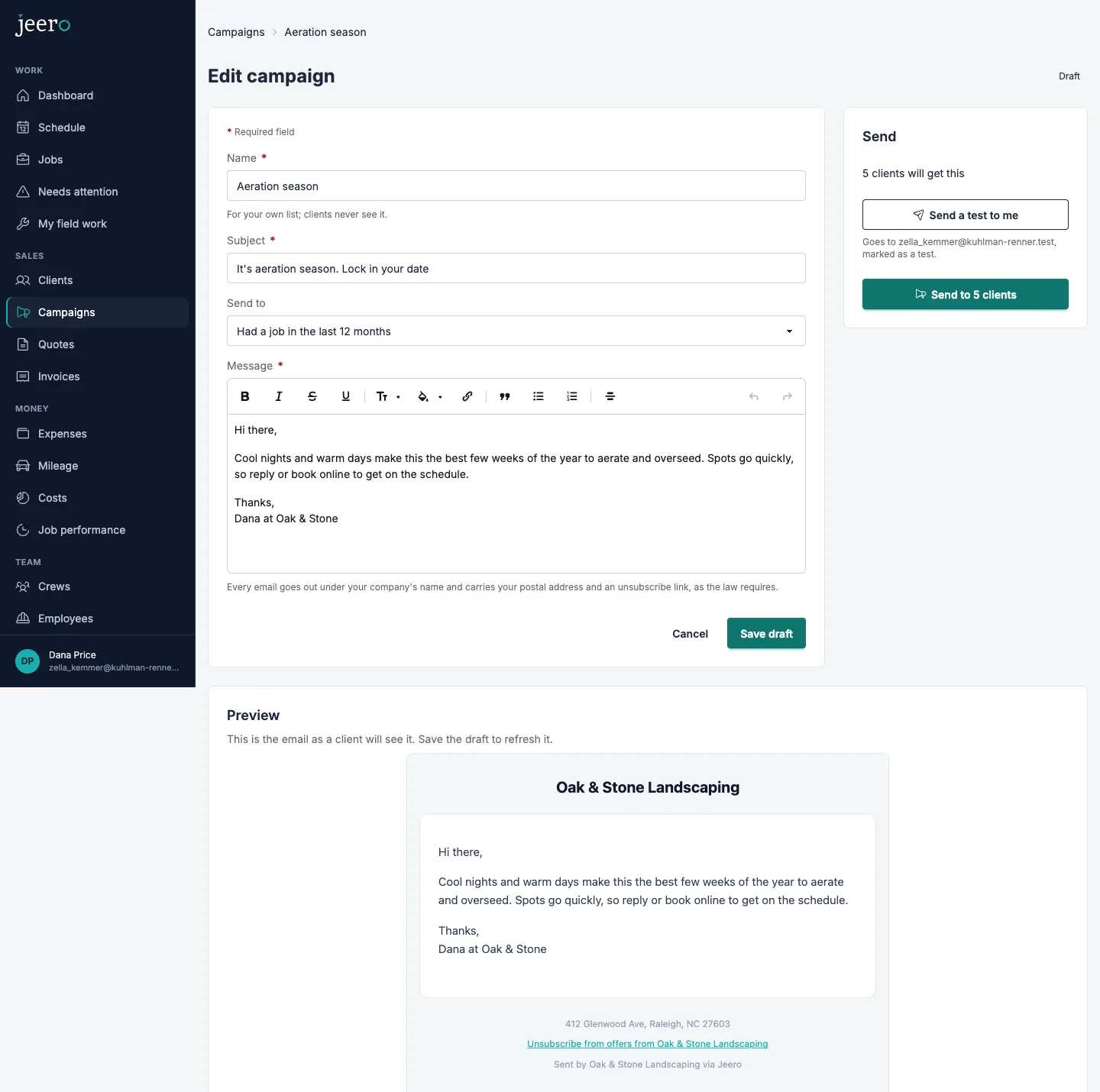
Writing a Campaign
Click New campaign and fill in:
- Name – for your own list. Clients never see it.
- Subject – the email’s subject line.
- Preview text – optional. The short gray line most inboxes show after the subject, up to 90 characters. Use it to add to the subject rather than repeat it. Left empty, inboxes show the start of your message instead.
- Send to – Everyone with an email, or only clients who had a job in the last 3, 6, 12 or 24 months. The filter counts visits scheduled in that window, upcoming ones included, so a client booked for next week is in. The count of clients who will get it updates when you save.
- Message – the body, with headings, bold, lists, links and photos. Keep it short; the email already carries your logo and company name at the top.
- Button – optional. One clear button below the message, such as Book now, with the web page it opens. The link must start with
https://. Fill in both the text and the link, or neither.
Photos
Click the image button in the editor’s toolbar to add a photo: PNG, JPEG, GIF or WebP, up to 5 MB each, and up to 6 per campaign. Jeero resizes each photo to fit the email and links it from the email rather than attaching it, which keeps the email light and out of spam folders.
Every photo needs a description: select the photo, click ALT and describe it in a few words, like “Fresh mulch beds along the front walk”. Many inboxes hide images until the reader allows them, and show this description in their place. A message with photos also needs at least 40 characters of its own text, so it still makes sense when the images are hidden.
The Client’s First Name
Type { in the message and pick Client’s first name to put in {{ first_name }}. You can also type {{ first_name }} in the subject, the preview text or the button. Each client sees their own first name there; a client without a first name on file sees “there”, so “Hi {{ first_name }}” reads “Hi there”. The preview and your tests use the sample name Alex. No other {{ ... }} values can be filled in.
Save draft keeps it; you can come back to it any time. The Preview below the form shows the email exactly as a client will see it, footer included. Save the draft to refresh it after an edit.
Testing and Sending
In the Send panel:
- Send a test to me emails the campaign to your own address, with [Test] in front of the subject. Use it to check the email in a real inbox before anyone else sees it. Each person can send themselves 10 tests an hour.
- Send to N clients sends it for real, after a confirmation. Sending cannot be undone or stopped once it starts. A company can start 3 sends in 10 minutes.
The email goes out in batches, about 200 a minute, so a list of 2,000 clients takes about ten minutes. The campaign shows as Sending until the last email is out, then Sent.
Sending is refused when:
- your company is still on its free trial. You can send yourself tests, and the owner can pick a plan from See plans in the Send panel;
- your company has no postal address on My company > Profile. The law requires it in every marketing email, so add it first;
- you have sent 8 campaigns in the last 30 days;
- nobody in the audience has an email address with offers turned on;
- your account can’t send: it is suspended, support turned messaging off, or the owner’s email address is not verified yet. Contact support if you think it should be able to.
Once sent, a campaign cannot be edited. Duplicate makes a new draft with the same text, for next season.
Who Gets It
Every active client with an email address, within the Send to filter, except clients who have unsubscribed from your offers (see below). Archived clients and clients without an email are skipped; the results page lists why each one was skipped.
Campaigns go only to your own clients, the ones on your Clients list. Jeero does not send to imported lists of addresses that are not clients.
What the Email Carries
Each email goes out from Jeero’s address with your company’s name as the sender, so a client sees it as “Your Company via Jeero”. Replies go to the email address on your company profile, or to the owner’s email address when the profile has none.
Below your message, every campaign email carries your company’s postal address, an Unsubscribe from offers link, and “Sent by Your Company via Jeero”. These are required by law for marketing email and cannot be removed.
How Clients Unsubscribe
The Unsubscribe link opens a page that asks the client to confirm, then stops your campaigns to them. Most mail apps also show their own Unsubscribe button at the top of the email, which does the same thing. Clients with portal access can also turn offers on or off under Preferences in their portal.
Unsubscribing only affects campaigns. The client still gets quotes, invoices, receipts and appointment emails from you as before.
A client who has unsubscribed shows a line saying so on their client page, with the date. You cannot turn offers back on for them: only the client can, from the unsubscribe page or their portal. A client whose mail provider reports a spam complaint or a bounced address is unsubscribed the same way.
Results
Open a sent campaign to see:
- Sent, Failed and Skipped, with the reason for each skipped client;
- Opened and Clicked, as reported by the clients’ mail apps. Many apps block open tracking, so treat opens as a floor, not a count;
- Unsubscribed since the campaign went out;
- the Email itself, exactly as it went out. Jeero keeps a copy when sending starts, so a later change to your logo, name or address does not change it. It shows the greeting a client without a first name got. Campaigns sent before November 8, 2026 show their text rebuilt with your company’s current details instead.