Notifications & Alerts
Overview
Jeero tells crews when their work changes and tells owners and managers when something needs attention. Messages to your clients are covered in Company Setup.
How You Receive Notifications
- Push – on your phone, through the Jeero mobile app. Tapping it opens the job, quote, or invoice it is about.
- In-App – an entry in the app’s notification list (see The Notification Center).
- Email – to your account email address. Owner and manager alerts can be emailed; crew notifications are push and in-app only, except a client’s text.
Notifications for Workers
Crew leads, crew members, and owners or managers who also have a field role are notified about:
- Job assigned – a job has been given to your crew.
- Job reassigned – a job has been moved off your crew to another one. The crew that receives it gets Job assigned.
- Schedule changes – a job has been moved to a different day, given a start time or a new one, had a visit added or removed, or a whole day has been moved. It also covers a job being canceled or a visit being skipped by the office: the notification is titled “Job Canceled” or “Visit Skipped”, and it follows your Schedule changes setting.
- Pre-job reminder – one hour before a job with a locked start time.
- Daily overview – how many jobs you have today and which is first. Sent at 6 AM in your company’s timezone, only on days you have work.
- Job site reminders – a reminder on your phone to clock in when you arrive at a job site. Push only, set from the mobile app.
- New text from a client – a client with open work for your crew texted back. Business plan.
You are not notified about a change you made yourself. If you forget to clock out and Jeero closes your shift automatically, you are told so you can check your timesheet.
Notifications for Owners & Managers
Every owner and manager in the company receives these.
Work Alerts
- Job completed – a job has been marked complete.
- Job note added – a note was added to a job from the crew’s side, with the start of the note.
- Job rescheduled by crew – a crew lead moved a job to a different day.
- Visit skipped by crew – a crew lead skipped a visit, with the reason. Reschedule it or cancel it from the job page. See Jobs.
- Visit canceled by client – a client called off a visit they booked online, from their portal; the job is canceled. See Online Booking.
- Job over time – a started job has run past its estimated duration by more than your overage buffer. Sent once per job. Business plan.
- Incomplete job alert – a job due today has not been marked complete past its expected finish plus your grace period. Sent once per job. Business plan.
- Shift auto-closed – a worker did not clock out and the shift was closed automatically. Review the timesheet before payroll. Every plan.
- Photo geofence violation – a job photo was taken outside the geofence or without location, when the photo geofence is on. Pro and Business plans. See Location & GPS Tracking.
- New text from a client – a client texted back and the reply is waiting in Messages. Business plan, once your texting number is live (see Messages and Client Texting).
- Client texts undeliverable, Client opted out of texts, and Texts not delivered – texting a client has stopped (unreachable number, or they replied STOP), or some of today’s texts were held; see today’s texts on My company > Billing & usage, or contact support.
- Recurring visits overdue – a recurring series has gone too long without a visit. Sent once per overdue stretch.
Sales & Billing Alerts
- Quote accepted and Quote rejected – the client has answered a quote.
- New quote request – someone submitted your quote request form. If they asked for a day and time, the notification says which.
- Request withdrawn by client – a client took back a request from their portal before you acted on it.
- Payment received – a client paid an invoice.
- Payment failed – a client’s bank payment for an invoice or quote deposit did not go through. The client is sent a link to pay again, by email and by text.
- Payment needs attention – a payment arrived that could not be applied, and the invoice or quote is on hold. See Invoices and Payments.
- Invoice overdue – an invoice that was sent is past its due date. Repeats at most once every 7 days per invoice. Push and in-app only.
- Invoice undeliverable – an invoice could not be sent because the client has no email address and is not set up for texts.
- Payment refunded, Payment disputed, and Payout failed – news from Stripe about a payment or your payouts.
- QuickBooks sync failed, QuickBooks backfill finished, QuickBooks Payroll refused a shift, and QuickBooks refused a payout – what QuickBooks accepted or refused, and why. See QuickBooks.
Controlling What You Receive
On the web, owners and managers open My account and click Manage notifications on the Notifications card. In the mobile app, open More and tap Notification preferences. You see only the notifications for your role, grouped under Job updates, Quotes, Billing, and Other, each with an In-App, Email, and Push switch. A channel a notification cannot use shows a dash instead of a switch. The mobile app leaves out the refund, dispute, payout, texting status and most QuickBooks alerts; the web page has every alert except Job site reminders.
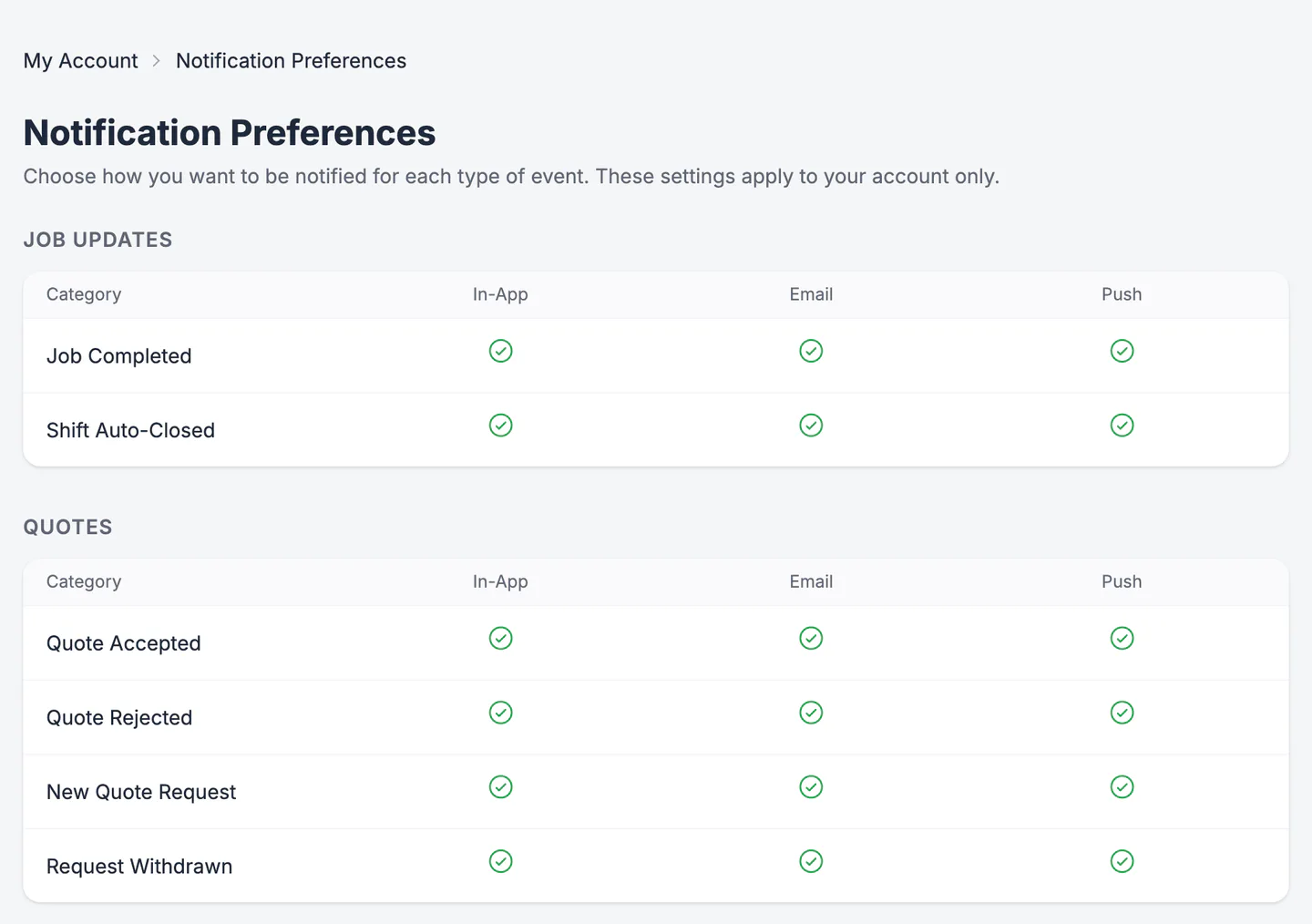
Everything is on by default. The settings apply to your account only, in the company you are signed in to.
Company-Wide Alert Settings
Owners and managers can switch any owner and manager alert off for the whole company on My company > Alerts, in the Company notifications list. An alert switched off there is sent to nobody, whatever their personal preferences. Alerts outside your plan are not listed. While the two Business plan alerts are on, each has a setting with its own Save button:
- Overage buffer (minutes) – how far past its estimate a started job must run before Job over time is sent. Default 15; 0 alerts as soon as the estimate is exceeded.
- Grace period (minutes) – how long after a job’s expected finish Jeero waits before the Incomplete job alert. Default 30. The expected finish is the job’s duration added to its actual start, or else to its route arrival time, or else to its locked start time.
A few alerts carry a slightly different name there; Company Setup lists them.
The Notification Center
In the mobile app, open More and tap Notifications to see your most recent notifications. Opening the list marks them all as read, and tapping one opens the job, quote, or invoice it refers to. Notifications are removed after 90 days.