Catalog
Overview
The catalog is your library of reusable services, parts, and materials. Save an item once, then pull it into any quote, job, or invoice line from a quick search. Owners and managers manage it on the web under Settings > Catalog.
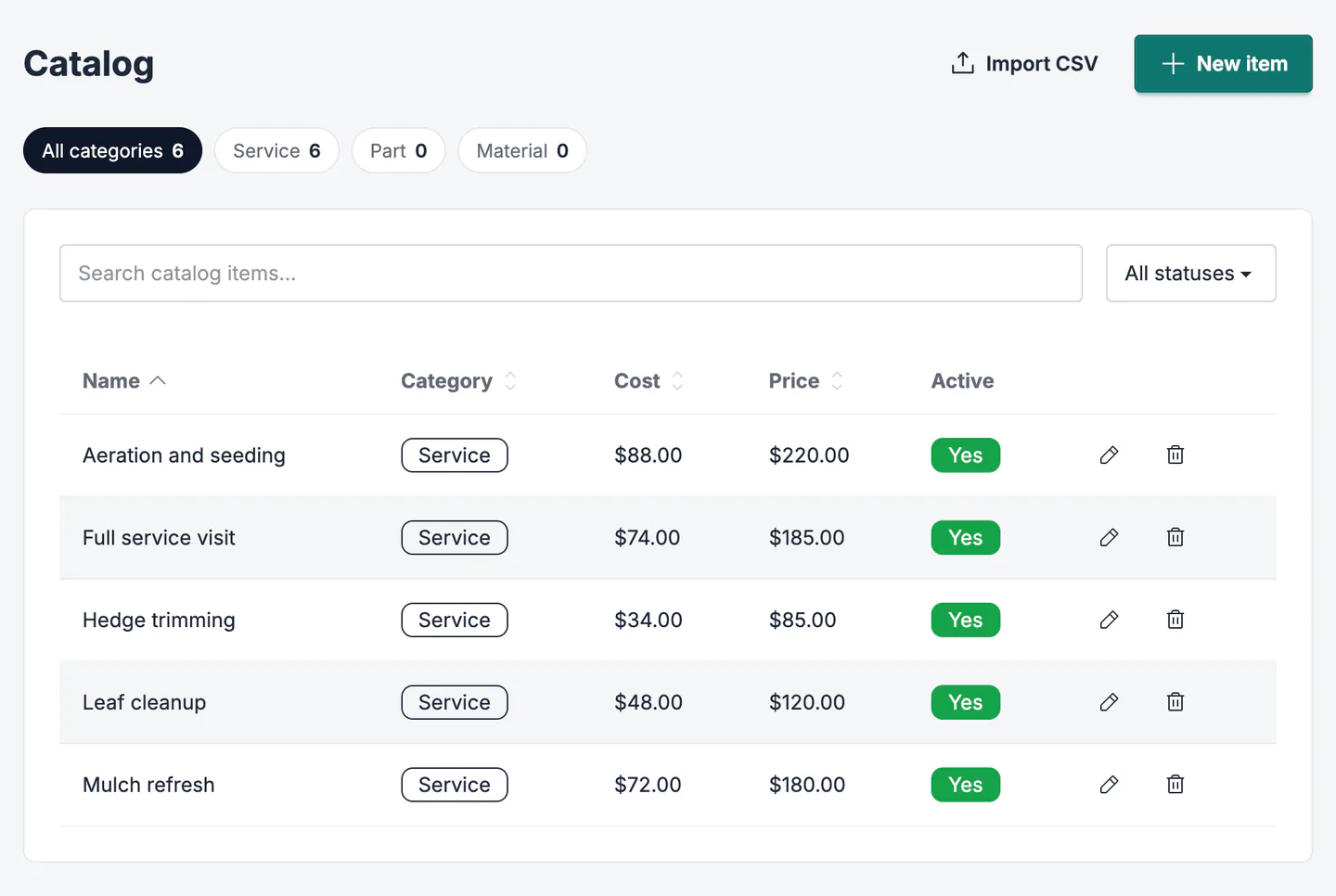
Creating Catalog Items
On the Catalog page, click New item and fill in:
- Name – Required. This becomes the line’s description, so it is what your client reads.
- Category – Required: Service, Part, or Material.
- Description – Optional note for your own reference. It is not copied onto quotes or invoices.
- Default quantity – Required, above zero.
- Unit – For example “each”, “hour”, or “yard”.
- Cost – What one unit costs your company. Clients never see it. It feeds the materials cost of a job (see Costs) and its profit (see Profitability).
- Price – What the client is charged for one unit, before tax. The same Cost and Price fields are on every line item.
- Active – Untick to hide the item from line item search without deleting it.
Finding Items
Search the Catalog page by name, narrow it with the category chips (All categories, Service, Part, Material), or filter by Active and Inactive. Click the Name, Category, Cost, or Price heading to sort.
Using Catalog Items in Quotes, Jobs, and Invoices
When you add a line item to a quote, job, or invoice, start typing in the description field to search your active catalog items. Pick one and it fills in the description, category, quantity, unit, cost, price, and the Taxable box. Every field stays editable, and you can ignore the suggestions and type a custom description instead.
Line items have no Material category, so a material item comes in as a Part.
In the mobile app, adding a line shows a Catalog items search at the top that works the same way, except it does not fill in the cost.
Saving a Line Item to the Catalog
Tick Save to catalog on a line item to add it to the catalog with that line’s description, category, quantity, unit, price, and whether it is taxable. On the web the cost is saved too. The option is on every line of a quote, and on the form for adding a line to a job or invoice. In the mobile app it is the Save to catalog switch.
Only Service and Part lines can be saved; expense and mileage lines cannot. If an item with the same name already exists, a second one is still created and Jeero tells you, so you can delete the duplicate.
Importing Items from a Spreadsheet
Click Import CSV on the Catalog page, use Download template to get the expected columns (name, category, description, cost, price, unit, taxable, active, quantity) or Download sample data for a filled-in example, then upload your file and click Import. A file over 2 MB is refused as soon as you choose it, and one over 5,000 rows when you click Import.
- Rows whose name already exists in your catalog are skipped, so you can safely re-upload an updated file.
- A blank or unrecognized category becomes Service, a blank unit becomes “each”, and a blank quantity becomes 1. Items are active unless the file says otherwise.
- Jeero reports how many items were imported and skipped, and lists any rows it could not import with the reason.
Editing and Removing Items
On the Catalog page, use the pencil icon to edit an item or the trash icon to delete it. Line items keep their own copy of the details, so editing or deleting a catalog item never changes existing quotes, jobs, or invoices.
If QuickBooks Online is connected, an item is copied there with its name, price, and cost the first time an invoice uses it.